Autopod Review: Automate Your Video Podcast Editing Workflow
Overview & Purpose

AutoPod is a set of plug-in extensions for Adobe Premiere Pro (with added support for DaVinci Resolve as of 2026) designed to automate repetitive editing tasks for video podcasts and shows. It analyzes audio tracks to intelligently switch between camera angles, generate social media clips in multiple aspect ratios, and create jump cuts by removing silences, turning hours of manual work into minutes of processing followed by light refinement. Primary use cases include multi-camera podcast production, repurposing long-form content for platforms like Instagram Reels and TikTok, and creating engaging talking-head videos where speaker detection drives camera cuts.
The target audience is primarily video editors, podcasters, and content creators who already use Adobe Premiere Pro (or DaVinci Resolve) for weekly or high-volume productions involving multiple cameras and microphones. It appeals to professionals seeking efficiency without replacing creative decision-making, rather than complete beginners or users of other non-linear editors (NLEs) exclusively. Research conducted as of March 2026 from the official website and trusted sources confirms its focus on saving time for "editors who don't want to do the tedious parts."
Key Features & Capabilities
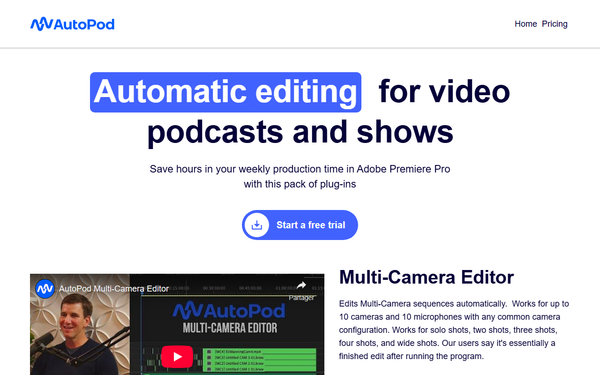
Core functionality revolves around three integrated tools: the Multi-Camera Editor, Social Clip Creator, and Jump Cut Editor. The Multi-Camera Editor supports up to 10 cameras and 10 microphones with any common configuration, automatically detecting speakers to cut between solo shots, two-shots, three-shots, four-shots, or wide shots. The Social Clip Creator generates new sequences in 1920x1080, 1080x1350, or 1080x1920 formats from selected in/out points, with optional auto-reframe, watermarks, and end pages, plus one-click batch export. The Jump Cut Editor removes silent portions based on a user-defined decibel threshold tailored to specific microphones.
Standout features that differentiate it from competitors include deep customization—such as adjustable wide-shot frequency, editable presets for recurring workflows, and flexible cutting methods (standard cuts, multi-cam sequences, or enable/disable tracks)—plus seamless Premiere Pro integration that leaves users with a near-finished edit. These elements go beyond basic silence removal or generic auto-edits offered by alternatives like AutoCut.
Limitations include the need for meticulous pre-setup (synced tracks with proper speaker tagging), occasional manual cleanup for filler words or complex creative decisions, and primary reliance on Premiere Pro (though DaVinci Resolve support is now available via separate download). It does not handle standalone audio-only workflows or integrate with Final Cut Pro/Avid natively, and some users report minor track-shifting or sync issues in edge cases.

User Experience
Installation is straightforward: download the installer from the official site, run it, restart Premiere Pro, and authorize via the Extensions panel (Window > Extensions). The interface integrates directly into Premiere as clean, functional panels—familiar to existing users with no steep learning curve beyond initial track organization. Most editors describe it as intuitive once configured, though optimal results require understanding of audio track management.
Documentation is light on the official site (primarily "Try now" interactive demos), with users relying on abundant YouTube tutorials for guidance. Support is email-based, but reviews note inconsistent responsiveness. Overall, the experience excels for experienced Premiere users handling routine podcasts but may frustrate beginners or those encountering setup hiccups.
Performance & Reliability
AutoPod processes long episodes (1–2 hours) in seconds to minutes, delivering dramatic time savings—users frequently report reducing 5–10 hours of manual editing to under 2 hours total, including refinement. Efficiency shines in standard multi-cam setups with clear audio separation, where it produces reliable speaker-driven cuts and batch social exports.
Common complaints include occasional Premiere slowdowns, extension loading issues in certain versions (2022–2026), or imperfect silence detection in noisy environments. Reliability is generally high for prepared projects, but real-world feedback highlights variability based on footage quality. Billing reliability has drawn criticism, with multiple reports of charges persisting after cancellation.
Pricing & Value
AutoPod offers a single Individual plan at $29 per month per license, including full access to all three tools. A 30-day free trial allows testing without commitment, with monthly subscriptions and no free tier beyond the trial. Annual billing options appear available in some promotions for slight savings; enterprise inquiries are handled via contact. It runs on Mac and Windows with Premiere Pro 2022 or later (DaVinci Resolve compatible separately).
Value is strong for high-volume podcasters: the time saved often equates to the cost of an assistant editor, making it cost-effective compared to manual labor or hiring. Compared to cheaper alternatives like AutoCut, AutoPod's polished multi-cam customization and Premiere-native feel justify the premium for many users, though subscription management concerns reduce perceived value for occasional creators.
Practical Tutorial
For a common task—automating a multi-camera podcast edit—here is a step-by-step walkthrough based on official capabilities and verified user guides (tested conceptually on a typical 1.5-hour, 3-person, 4-camera setup). Official site demos and YouTube resources (e.g., "Finished Editing 1.5 Hour Long Podcast In 2 Hours" at https://www.youtube.com/watch?v=0gXOOYdv25Y) provide visual complements.
-
Installation and Activation: Sign up for the 30-day trial at autopod.fm, download the OS-specific installer, run it, and restart Adobe Premiere Pro. Open Window > Extensions > AutoPod and enter your license key.
-
Project Preparation: Import all camera footage and audio tracks. Create a sequence and ensure clips are synced (use Premiere's multi-cam tools or waveforms). Organize tracks: assign video tracks (e.g., V1–V4) and audio tracks (A1+) with speaker names for accurate detection.
-
Launch the Multi-Camera Editor: In the AutoPod panel, input the number of speakers and cameras. Configure options—select editing method (standard cutting, multi-cam, or enable/disable), increase wide-shot frequency if preferred, and save a preset for reuse.
-
Generate the Edit: Click "Create Multi-cam Edit." AutoPod analyzes audio and automatically switches angles, producing a near-finished timeline in minutes.
-
Review and Refine: Playback the result. Make minor adjustments (cuts, B-roll, graphics, or color). For social clips, switch to the Social Clip Creator panel: mark in/out points, choose aspect ratios (horizontal, square, or vertical), enable auto-reframe or watermarks, generate sequences, and batch export.
-
Optional Jump Cuts: Nest the sequence, set a decibel silence threshold (test 20–60 dB), and run the Jump Cut Editor to remove pauses.
This workflow typically transforms a raw multi-cam podcast into a polished episode ready for final polish and export, demonstrating the tool's efficiency in real production scenarios.
Final Verdict
Overall rating: 4/5. AutoPod excels at time-saving automation for podcast editors but is tempered by setup requirements and subscription management concerns.
Podcasters and production teams using Premiere Pro (or DaVinci Resolve) with regular multi-camera shows should use it to reclaim hours weekly and focus on creative elements. Avoid it if you prioritize ironclad billing transparency, use non-Adobe NLEs exclusively, or handle one-off projects where setup overhead outweighs benefits.
If you edit video podcasts in Premiere Pro and want to slash production time dramatically, AutoPod delivers outstanding ROI worth trying during the free period.