Gigapixel AI Review: The Gold Standard for AI Image Upscaling

Overview & Purpose
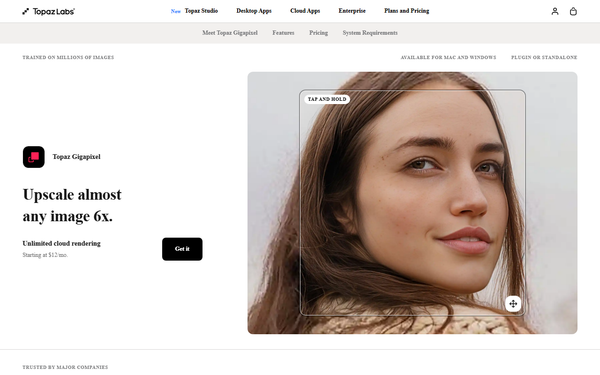
Gigapixel AI, developed by Topaz Labs, is a specialized deep learning-based image upscaler designed to enlarge photos and graphics up to 6x while intelligently adding realistic details, textures, and sharpness rather than simply interpolating pixels. Its primary purpose is to recover and enhance low-resolution images, remove compression artifacts, and enable high-quality cropping, zooming, or large-format printing without visible quality loss. Key use cases include restoring old family photos, preparing images for fine art prints, billboards, or event photography, enhancing architectural details, landscapes, fur/feathers, and especially faces through dedicated recovery models. It also supports creative applications like upscaling AI-generated art or video frames to 4K.
The tool targets professional photographers, fine artists, graphic designers, illustrators, restorers, and creative teams who require production-ready results for commercial or archival work. As of April 2026, it positions itself as the original commercial AI upscaler (launched in 2019) and remains a go-to for users needing precision over automated all-in-one editors.
Key Features & Capabilities
Core functionality revolves around AI-driven upscaling with nine specialized models, including Standard (for general natural detail), High Fidelity, Low Res, Text & Shapes, Art & CG, Recover, Redefine, and Face Recovery. Newer additions like Wonder (cloud) and Standard MAX (local/cloud) focus on high-accuracy enhancements for complex subjects. Users can apply up to 6x lossless zoom, remove noise/compression, and add sharpening in one pass, with options for batch processing.
Standout differentiators include its focus purely on enlargement (unlike broader tools like Topaz Photo AI, which combines denoising and sharpening), true-to-original fidelity via training on millions of images, local processing for privacy, and seamless integration as a standalone desktop app or plugin for Adobe Photoshop and Lightroom Classic. It supports Mac and Windows, with both local GPU/CPU rendering and optional cloud acceleration for faster results on demanding files.
Limitations include no selective editing (adjustments apply globally), occasional artifacts such as watercolor-like smoothing on fine textures or minor hallucinations in highly degraded images, and dependency on high-end hardware for optimal speed. It lacks a free tier beyond a watermark trial and does not include built-in noise reduction or sharpening as primary features (users often preprocess with other Topaz tools). Compared to competitors like Adobe Super Resolution or free open-source options (e.g., Upscayl), Gigapixel excels in detail realism but requires more resources.

User Experience
Gigapixel AI features a clean, minimalist interface that prioritizes simplicity: drag-and-drop image loading, model selection dropdowns, sliders for scale factor, sharpen, and noise removal, plus side-by-side before/after previews. The learning curve is low—even beginners can achieve strong results in minutes—making it accessible for non-technical creatives while offering enough controls for pros to fine-tune.
Interface quality is intuitive and responsive, with clear visual feedback during processing. Documentation is solid via official quick-start guides and a full user guide on docs.topazlabs.com, covering preferences, language support, and model specifics. Community support through Topaz forums and responsive email help supplement this, though some users note occasional crashes on older hardware or after updates. Overall, it feels polished and purpose-built rather than bloated.

Performance & Reliability
Processing speed varies significantly with hardware: modern GPUs (e.g., with 16GB+ RAM recommended) handle 4x–6x upscales in seconds to minutes per image, while older systems or CPU-only mode can take 5–30+ minutes, with high resource usage causing fan noise or slowdowns. Batch mode works reliably for multiple files, and cloud options accelerate results for large jobs.
Common complaints from users include slower performance post-major updates (e.g., version 7+ series), memory intensity, and rare artifacts like oversharpening or unnatural textures in landscapes/feathers. Reliability is generally high for production work, with over 2 billion images processed historically, though some report minor instability on low-end PCs or after subscription-driven model updates. It remains more consistent than Photoshop's built-in tools for complex subjects.
Pricing & Value
Gigapixel AI operates on a subscription-only model as of late 2025 (no perpetual license option remains). Personal plans start at $149 billed annually (~$12/mo effective) or $29/mo; Pro tiers reach $499 annually for full commercial rights and higher concurrency. It is also included in the Topaz Studio bundle (~$399 annually), which unlocks all Topaz AI apps with unlimited local/cloud rendering. A limited trial is available (watermarked exports), with no free tier.
Value is strong for heavy users who print large or restore frequently, as results often surpass free alternatives and integrated Photoshop features in natural detail. However, the shift to subscriptions has drawn criticism from long-time owners expecting lifetime updates. It justifies the cost against one-time tools like ON1 Resize AI when maximum realism and face recovery matter, but budget users or casual upscalers may prefer free/open-source options.
Practical Tutorial
Official quick-start and user guides are available at docs.topazlabs.com/topaz-gigapixel. Here is a step-by-step walkthrough for a common task—upscaling a low-resolution portrait (e.g., a 1MP old family photo) for large-format printing or cropping—using the standalone app (process is similar in plugins):
-
Install and Launch: Download from topazlabs.com/gigapixel-ai, install on Mac/Windows, and open the app. Sign in with your Topaz account for cloud access if subscribed.
-
Load Your Image: Drag and drop the low-res file (JPEG, PNG, TIFF, etc.) into the interface or use File > Open. Gigapixel auto-detects issues like compression.
-
Choose AI Model: In the left panel, select an appropriate model—use "Face Recovery" for portraits to restore details like eyes and skin texture, or "Standard" for general subjects. Enable "Recover" or "Redefine" if artifacts are present.
-
Set Parameters: Adjust upscale factor (e.g., 4x for a 4MP result suitable for prints). Fine-tune sliders for Sharpen (start at 0.5–1.0 to avoid over-processing) and Noise Removal. Preview the zoomed-in section to check realism.
-
Process: Click "Upscale" or "Start." Local processing keeps files private; cloud mode is faster for complex models. Monitor progress (typically 30–90 seconds on good hardware).
-
Review and Export: Compare before/after in split view. If satisfied, save as high-quality TIFF or JPEG. For batch: Use the batch queue for multiple files.
For video examples, search YouTube for "How to use Topaz Gigapixel AI Beginners Tutorial." Real-world example: A 800x600px scanned photo upscaled 4x with Face Recovery yields sharp, print-ready 3200x2400px results with natural skin pores and hair detail—far superior to bicubic interpolation.
Final Verdict
Overall rating: 4.5/5. Gigapixel AI excels for professionals needing the most natural, detailed upscales for printing, restoration, or creative enlargement, thanks to its specialized models and fidelity. It is ideal for photographers, artists, and designers with capable hardware and a regular workflow involving low-res assets. Avoid it if you work on low-end computers, prefer one-time purchases, or only need occasional casual upscaling—free tools or Photoshop's integrated features may suffice.
One-sentence recommendation: If you demand the highest-quality, realistic detail addition from low-res images and don't mind the subscription, Gigapixel AI is still the gold standard in 2026.