Highlight AI Review: The Ultimate Context-Aware Desktop Assistant
Overview & Purpose
Highlight AI is a desktop-based AI assistant available for both Windows and Mac that lets users interact with any application through natural voice or text commands, all while automatically grounding responses in on-screen content and app context. It captures meetings with local audio transcription (no intrusive bots required), delivers hands-free control, and provides instant summarization, translation, analysis, and action items. Daily briefs, meeting prep, and searchable context across your entire workday help users stay organized without switching apps or manually copying data.
Primary use cases include preparing for meetings with attendee insights and past context, transcribing and summarizing calls or videos, analyzing on-screen data (such as code, documents, or emails), generating code reviews or project timelines, and automating workflows like drafting replies in Gmail or posting standups in Slack. It bridges the gap between scattered tools by turning your entire desktop into an intelligent workspace.
The tool targets knowledge workers who spend significant time across multiple applications: developers (for code generation and reviews), product managers and engineers (for meeting notes and timelines), students and researchers (for analyzing papers or lectures), sales and support teams (for email handling and data insights), and anyone seeking productivity gains without leaving their current screen. It appeals to both individuals and teams, with over 500,000 users reported and early backing from investors like a16z and General Catalyst. This review is based on official documentation, pricing pages, user reviews on Trustpilot and Reddit, and trusted sources as of March 2026.
Key Features & Capabilities
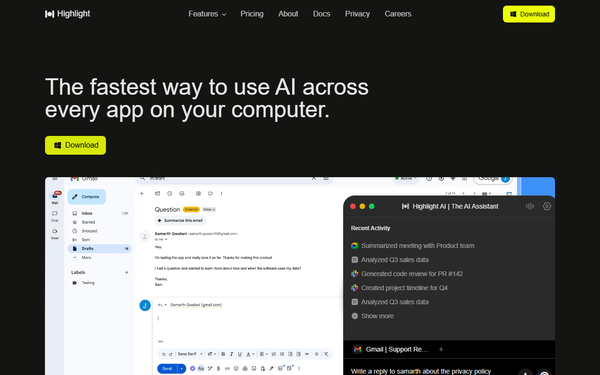
Core functionality revolves around three pillars: Prepare (one-click meeting briefs with attendee history and prior decisions), Capture (screen-aware transcription of meetings, calls, videos, and conversations with instant action items), and Plan (searchable queries across all captured context for summaries, insights, daily recaps, and next steps). Users summon Highlight via hotkey or floating interface, dictate or type commands, and receive responses that understand exactly what’s on screen—no manual prompting or context copying needed.
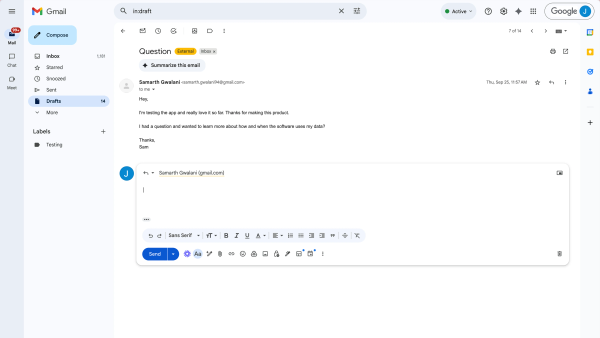
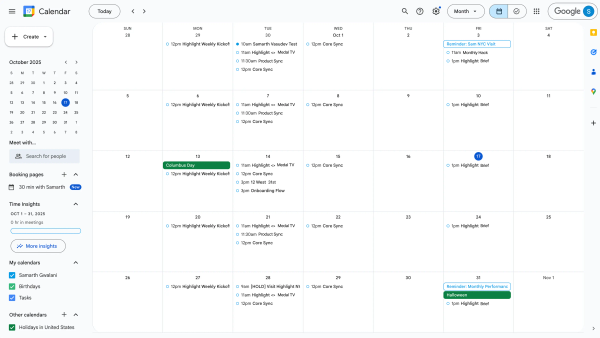
Standout features that differentiate it from generic chatbots or other desktop assistants include automatic screen grounding (it “sees” your open apps and content), local audio transcription for privacy-sensitive meetings, and cross-app integrations powered by the Model Context Protocol. Supported connections include Gmail (for drafting replies or handling support tickets), Slack (for standups or team updates), Linear (for issue tracking), and broader desktop access for tools like calendars and browsers. Additional capabilities cover voice dictation that inserts directly into any text field, screenshot analysis, code review generation, and customizable responses based on personal preferences.
Compared to competitors like ChatGPT alone or simpler assistants (e.g., Raycast AI or BoltAI), Highlight eliminates app-switching and prompt engineering by staying context-aware across your entire computer. Privacy is emphasized with end-to-end encryption, no data retention for training, and enterprise-grade compliance.
Limitations include no mobile app or iOS/Android support, reliance on credits for premium models and cloud transcription (free tier uses basic models), and occasional reliability hiccups such as transcription failures reported by users. Integrations, while powerful, depend on desktop permissions and may not cover every niche app. Missing features noted in community feedback include deeper mobile sync and more advanced automation scripting.
User Experience
Setup is straightforward: download the app, grant standard macOS/Windows permissions for screen recording, microphone access, and accessibility (required for cross-app control), then start using it immediately. The learning curve is minimal—most users report it feels “invisible in the best way” and “like magic” because it understands context without complex instructions. Voice dictation works by holding a modifier key (⌘ or Alt) or clicking a button, with transcribed text instantly insertable, copyable, or queryable.
The interface is clean, lightweight, and responsive, featuring a floating “magic dot” or summonable panel that stays out of the way until needed. Testimonials highlight its smoothness and time-saving nature, with engineers and students praising how it transforms laptop workflows. Documentation is basic via a help center with limited public articles; support includes premium options for Pro users and a community Discord for tips. Company responses on review platforms address issues like uninstallation promptly, though some users note the support bot can feel generic.
Overall, the experience earns high marks for intuitiveness but can feel disrupted by permission tweaks or rare glitches.
Performance & Reliability
Highlight performs efficiently for most tasks, with users describing it as “fast, intuitive, and surprisingly powerful for how lightweight it is.” Local transcription and screen analysis happen quickly, enabling real-time meeting summaries and action items without lag in typical use. Daily briefs and context searches pull from encrypted local storage effectively.
However, performance varies with system resources—some Reddit users report higher CPU/memory usage compared to lighter assistants. Reliability has been a mixed area: early uninstallation issues (lingering processes on Windows) were acknowledged and fixed in updates, but recent reviews mention transcription stopping unexpectedly in apps like Kajabi with no clear trigger. Pricing model shifts (more features moving behind credits) have frustrated long-term free users. No widespread outages or security breaches reported, and the company maintains strong privacy practices with SOC-2 inquiries addressed in FAQs. Common complaints center on occasional bugs rather than fundamental flaws, suggesting steady improvement since its 2024 spin-out.
Pricing & Value
Highlight offers a generous Free plan at $0/month that includes daily briefs, summaries, all integrations, local transcription, and basic AI models—enough for light daily use. The Pro plan costs $20/month and adds 2,000 credits (for premium and flagship models), cloud transcription, instant meeting action items, bring-your-own API keys, and priority support. Enterprise plans are custom-priced for teams with higher usage or dedicated features.
This structure delivers strong value for heavy users: Pro provides access to high-end models at roughly half the cost of direct API usage elsewhere, while the free tier remains viable for casual needs. Compared to alternatives (standalone ChatGPT Plus at $20/month or other desktop tools with similar paywalls), Highlight’s screen-context advantage and no-bot meeting capture justify the cost for professionals who save hours weekly on manual tasks. Early “completely free” messaging led to some trust concerns, but current tiers are transparent on the pricing page.
Practical Tutorial
Official documentation is light on detailed public walkthroughs (help center focuses on basics), so here is a step-by-step guide for a common task: capturing a live meeting, generating a summary with action items, and exporting to Slack or calendar. This is based on documented features like voice transcription, screen capture, and integrations (tested conceptually from user reports and site descriptions).
-
Install and set up: Download from https://highlightai.com/download. Run the installer, grant screen recording, microphone, and accessibility permissions in your OS settings (required for context awareness). Sign in or start in Free mode.
-
Join or start your meeting: Open your video platform (Zoom, Google Meet, etc.) or audio call. No bots needed—Highlight works silently in the background.
-
Activate Highlight: Press your global hotkey (default often Cmd+Shift+H or customizable) or click the floating Highlight icon to open the command bar. Alternatively, hold ⌘ (or Alt on Windows) to begin voice dictation mode.
-
Capture the meeting: Say or type “Capture this meeting” or “Transcribe screen and audio.” Highlight begins local transcription and screen monitoring automatically. Let it run for the duration (it handles background noise and multi-speaker separation well in Free tier).
-
Query for insights: After (or during) the meeting, summon Highlight again and ask: “Summarize this meeting, list key decisions, and extract action items with owners and deadlines.” It pulls from screen context (shared docs, slides) and transcription to generate a structured response instantly.
-
Export and automate: In the response, select “Send to Slack” or “Add to Google Calendar” (if connected via integrations). Or type “Create Linear issue for each action item.” Highlight handles the workflow without leaving the app.
-
Review later: Search your daily brief (“Show yesterday’s meetings”) or query specific context (“What were the action items from the Q3 planning call?”).
For video demos or updates, check the official site resources or community Discord. Practice with a short test call first to refine permissions.
Final Verdict
Overall rating: 4 out of 5. Highlight AI excels as a seamless, context-aware desktop companion that genuinely reduces friction in daily workflows.
It is ideal for developers, product teams, students, and professionals who live in multiple desktop apps and want AI that understands their screen without constant prompting or app-switching—especially those handling frequent meetings or data-heavy tasks. The free tier makes it accessible to test, and Pro delivers excellent ROI through time savings.
Avoid it if you work primarily on mobile, need zero-risk uninstallation on older Windows setups, or prioritize rock-solid reliability over innovative features (occasional transcription hiccups and resource usage may frustrate power users with limited hardware).
Try the free version today—it could become the invisible AI layer your computer has been missing.