Inbox AI Review: The Ultimate Voice Automation Tool for Mac
Overview & Purpose

Inbox AI is a voice-driven AI automation tool exclusively for macOS that lets users build custom conversational assistants and automate repetitive tasks through natural language commands, screen interactions, and triggers. It combines elements of Siri-like voice control with Zapier-style workflows, enabling actions such as drafting emails, rewriting text, searching the web, opening apps, running shortcuts, and processing content from the screen, files, or audio. A standout primary use case is deep integration with Apple Mail for fully on-device email automation: filtering junk, extracting tasks or notes, and routing them automatically to apps like Notion, Obsidian, Tana, or Apple Reminders—without requiring logins or cloud uploads for core processing.
Other common scenarios include quick-capture workflows (select screen text or images, have AI summarize/analyze/extract, then send elsewhere), voice-activated replies in Slack or Messages, and building branching automations that remember context or use conditions. The tool supports both local on-device AI (via Ollama or similar) for privacy and cloud models from 13+ providers (OpenAI, Anthropic, etc.) when more power is needed, with users bringing their own API keys.
Target audience includes Mac power users, productivity enthusiasts, automation tinkerers, heavy email users, and those seeking accessible voice control (e.g., for accessibility needs). It appeals particularly to developers or knowledge workers already comfortable with macOS Shortcuts, Raycast, or Keyboard Maestro who want AI decision-making layered on top, rather than beginners or non-Mac users.
Research conducted as of March 2026.
Key Features & Capabilities
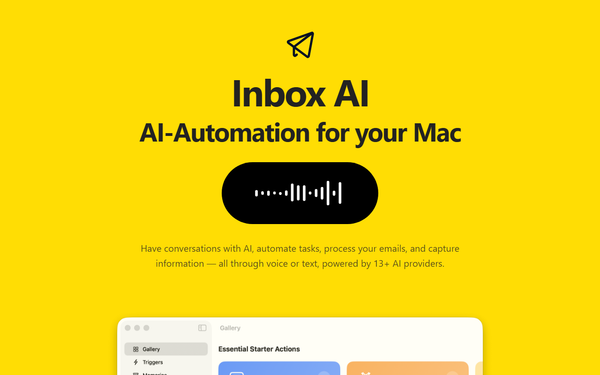
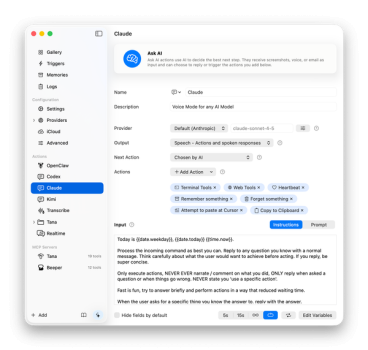
Core functionality revolves around triggers and smart actions. Triggers include voice hotkeys (e.g., Option + S), incoming emails, watched folders (for files/images/audio), quick screen capture, text input, or callback URLs. Smart actions use AI to converse with content, summarize/analyze/extract data, make multiple-choice decisions, or group sequential/parallel steps. Native macOS integrations handle Apple Mail (flag, color, move messages), Reminders (create tasks), clipboard, notifications, and Shortcuts execution. Advanced extensions via MCP (Model Context Protocol) allow connecting external tools, APIs, terminal commands, Brave web search, or page fetching for text extraction.
Standout differentiators include fully on-device email processing (no third-party access to your inbox), "buy once, use forever" with no subscriptions, memory of past interactions for context-aware responses, multi-modal input (voice + screenshots + text), and the ability to build gallery-shareable custom assistants that feel like a personal AI copilot. Privacy focus is strong—local models keep data offline, and email rules run without logins.
Limitations include no native mobile app (Mac-only), reliance on user-configured API keys for advanced cloud performance, and potential for AI hallucinations in complex branching workflows. Missing compared to broader platforms: no built-in team collaboration or cross-platform triggers beyond macOS ecosystem.
User Experience
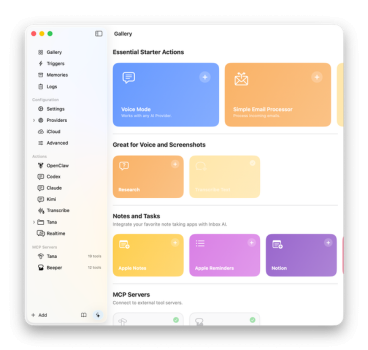
Activation is effortless once set up: global hotkeys instantly open voice mode or a chat window, with a minimalist menu-bar icon (paper plane) keeping it unobtrusive. Interface is clean and native Mac-style, blending seamlessly with Apple apps, but lacks polished onboarding wizards or guided tours—new users are expected to dive into the manual or community resources. Learning curve is medium-to-high: simple voice commands work immediately, but building sophisticated workflows requires reading documentation, experimenting with triggers/actions, and basic technical comfort (e.g., API setup or condition branching).
Documentation consists of a GitBook manual (https://dreetje-1.gitbook.io/inbox-ai/), developer YouTube videos (@dr33tje) with walkthroughs, and an active Slack community for support. Developer responses on the App Store are helpful and direct users to these resources. Overall, it's a power-user tool that feels rewarding after the initial investment but can frustrate casual users due to sparse in-app guidance.
Performance & Reliability
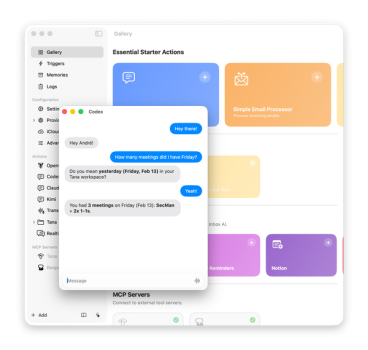
Simple tasks (voice dictation, quick screen analysis, basic email filtering) are fast and responsive, especially with local models or real-time APIs. Complex chained workflows (e.g., screenshot → AI extraction → API post to Notion + Reminders creation) introduce noticeable delays depending on the LLM chosen—local models prioritize privacy but are slower; cloud options add minor cost but improve speed. Email automation runs reliably on-device with no reported downtime.
Known issues are limited but include early launch bugs (e.g., menu-bar icon not appearing on some hardware, easily resolved by checking the top bar) and occasional workflow tweaks needed after macOS updates. User complaints are sparse due to the tool's niche status; the developer pushes frequent updates (current version 2.4+ as of late 2025). No widespread reliability problems surfaced in reviews or forums—most users report it as stable for daily automation once configured.
Pricing & Value
Inbox AI follows a straightforward one-time purchase model at $44.99 via the Mac App Store (DMG direct download also available, with possible 7-day trial access). No recurring fees, no in-app purchases, and no enterprise tiers—users only pay extra for cloud API usage if they opt out of free local models. Refunds follow Apple's policy.
Value is excellent for long-term users: it replaces multiple subscription tools (e.g., Zapier automations, premium voice apps, or email AI add-ons) at a fraction of ongoing cost while delivering deeper Mac-native integration and privacy. Compared to alternatives like SuperWhisper (voice-focused), Raycast AI extensions, or Keyboard Maestro, it stands out for its unified AI decision engine and email depth without monthly bills—ideal if you plan to use it beyond a few months.
Practical Tutorial
Setting up automated task extraction from incoming Apple Mail (a core real-world use case)
This walkthrough creates a rule that scans new emails, uses AI to extract action items, and adds them to Apple Reminders (or Notion via API). Based on official capabilities; for visuals and variations see the developer's YouTube channel (@dr33tje) or GitBook manual.
-
Install Inbox AI from the Mac App Store ($44.99) or download the DMG. Launch it—the paper plane icon appears in the menu bar.
-
Open the app via hotkey (default: Command + Shift + A) or menu bar. Grant permissions for Apple Mail and Reminders when prompted (one-time system dialog).
-
Go to the Workflows/Rules section (or use the assistant chat to start building). Create a new workflow:
- Trigger: Select "Incoming Email" (Apple Mail integration—fully on-device).
- Action 1: "Ask AI" — prompt example: "Extract all tasks, deadlines, and assignees from this email. Output as structured list with priority."
- Action 2: "Native macOS" → Create Reminders (or use MCP/API action for Notion/Obsidian if preferred; paste your API key once in settings).
- Add optional branching: If high-priority, also flag the email in Mail and notify via macOS Notification.
-
Test with a sample email (send yourself one with tasks). Activate via trigger or manually. Refine the AI prompt in the workflow editor for accuracy—add memory context if you want it to reference past emails.
-
Save and enable. Future emails process automatically in the background.
Result: Tasks appear in Reminders within seconds. Extend by adding voice trigger ("Process my latest email") or screen capture for manual follow-ups. Full customization examples and shared gallery workflows are in the official resources.
Final Verdict
Overall rating: 4.2/5 — Strong on power and value, docked slightly for onboarding and learning curve.
Who should use this tool: Mac power users, automation enthusiasts, heavy Apple Mail users, or anyone wanting voice-controlled workflows with privacy-first on-device AI and a one-time cost—especially if you already tinker with Shortcuts or Raycast and want AI smarts layered on top.
Who should avoid this tool: Beginners seeking plug-and-play simplicity, non-Mac users, or those with existing robust automation setups who don't need another customizable layer (it overlaps with tools like Keyboard Maestro + AI without being a complete replacement out of the box).
One-sentence recommendation: Inbox AI delivers a genuinely powerful, privacy-focused voice automation experience for Mac at an unbeatable one-time price—worth it if you're ready to invest a weekend in setup for lifelong productivity gains.