Kapwing Review: The Best AI-Powered Online Video Editor for 2026
Overview & Purpose
Kapwing is a browser-based, AI-powered online video editor that enables users to create, edit, and enhance videos directly in their web browser without downloading software. It combines traditional editing tools with advanced AI features to automate repetitive tasks, generate content from text or scripts, and optimize videos for multiple platforms. The primary purpose is to help users produce high-quality videos faster by handling time-consuming elements like transcription, cutting, subtitling, and resizing—ideal for the demands of short-form social media content, marketing campaigns, and quick-turnaround projects in 2026.
Key use cases include repurposing long-form content into social media clips, creating promotional videos, adding subtitles and voiceovers for accessibility, generating AI B-roll or full videos from prompts/scripts/articles, and collaborative team workflows for internal communications or educational materials. It supports everything from simple meme creation to polished marketing reels.
The target audience spans beginners and non-technical creators (such as housewives starting YouTube channels, educators, or PR teams) to professionals like social media managers, marketers, freelancers, YouTubers, podcasters, e-commerce teams, and agencies. It appeals especially to those needing fast, collaborative tools rather than deep professional post-production.
This review is based on the official Kapwing website (kapwing.com/ai and pricing pages) and trusted sources including user reviews on G2, Capterra, Trustpilot, and PCMag evaluations, as of April 10, 2026.
Key Features & Capabilities
Kapwing's core functionality revolves around a cloud-based editor with drag-and-drop timeline editing, media uploads (MP4, MOV, etc.), stock libraries (copyright-free images, videos, music, GIFs), templates, and export options across resolutions up to 4K. Users can trim, split, merge, add text/overlays, transitions, effects, and audio enhancements.
Standout AI-powered features differentiate it from many competitors:
- Smart Cut: Automatically removes filler words, pauses, silences, and background noise by editing directly from the transcript.
- Auto Subtitles and Translation: Generates accurate, animated captions (word-by-word with styles) in 100+ languages; includes downloadable SRT/VTT files.
- Background Remover and AI Tools: One-click subject isolation, eye contact correction (Auto-eye Correct), Speaker Focus, and B-roll Generator for inserting relevant footage.
- Voice Narration and Lip Sync: Text-to-Speech (TTS) with natural voices, custom voice cloning (Business+), AI Translator for dubbing, and lip-sync for generated dialogue.
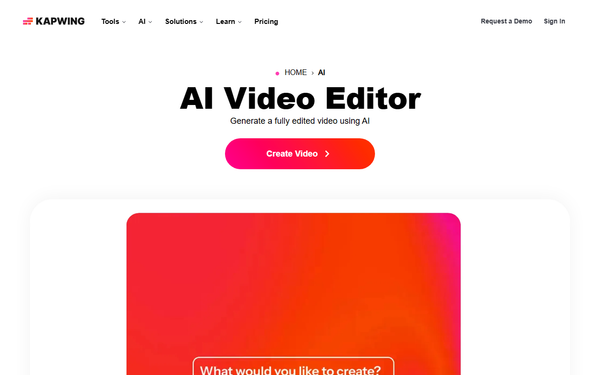
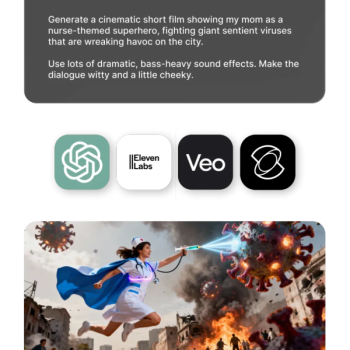
- Generative AI: AI Video Generator (text/image-to-video using models like Kling, Veo, Sora), AI Storyboards, AI Clip Maker, AI Article-to-Video, and AI Script-to-Video; integrates 8 leading AI models for scenes, avatars, and custom "Kais" effects.
- Other Differentiators: Real-time collaboration (like Google Docs), Brand Kit for consistency, AI Resizer for platform-specific formats (9:16, 16:9, etc.), and an AI Assistant for prompt refinement and planning.
These make Kapwing particularly strong for quick social media repurposing and AI-assisted creation, outperforming basic tools like Canva in depth while being more accessible than desktop software like Adobe Premiere.
Limitations include credit-based usage for advanced AI features (even on paid plans), watermark and export length restrictions on the free tier, browser-only operation (no offline editing or native app), and less granular control for complex VFX or color grading compared to pro desktop editors. AI outputs sometimes require human review for quality/consistency, and generative features depend on input quality and third-party model availability.
User Experience
Kapwing boasts an intuitive, modern interface that's highly accessible for beginners with a low learning curve—many users report getting productive in minutes via drag-and-drop and one-click AI tools. The workspace is clean, with a timeline, media library, and AI Assistant (lightbulb icon) for guidance. Real-time collaboration supports team commenting and shared workspaces seamlessly.
Interface quality is praised as slick and powerful for an online tool, with responsive design that works on desktop and mobile (though desktop is optimal). Documentation is robust via an extensive Help Center, YouTube tutorials, and in-editor tooltips. Support includes community resources, live chat/email (faster on paid plans), and priority assistance for Business/Enterprise.
Some users note occasional lag on memory-intensive projects or lower-end hardware, but overall, it's lauded for speed in everyday tasks and ease compared to traditional editors.

Performance & Reliability
Kapwing performs efficiently for most tasks: AI features like Smart Cut or auto-subtitles process in seconds to minutes, with fast exports for shorter videos. Cloud-based processing handles uploads up to 6GB (Pro) reliably in a modern browser (Chrome/Edge recommended).
Known issues include occasional export errors, audio playback glitches, and lag/freezes on complex multi-layer projects due to high memory demands—common complaints in user reviews. Bugs (e.g., crashes, failed renders) have been reported historically, though release notes indicate frequent fixes (e.g., better error messaging in 2026 updates). Some users experience delays with large files or third-party AI model downtime. Reliability improves with stable internet; free tier users hit more limits quickly. Overall, it's dependable for quick workflows but may frustrate with heavy or deadline-critical professional use.
Pricing & Value
Kapwing offers a generous free tier for testing: unlimited watermarked exports (up to 1 minute, 720p), limited AI credits, 3 projects (3-day storage), and basic stock assets.
- Pro: $16 per member/month (billed annually; $24 monthly) — removes watermarks, 4K exports, unlimited projects/storage, 1,000 AI credits/month, higher limits (e.g., 1,000 min subtitles), Brand Kit, collaboration.
- Business: $50 per member/month (billed annually; $64 monthly) — 4,000 credits, custom voice cloning, advanced lip-sync (130 min), priority features.
- Enterprise: Custom pricing — dedicated support, SSO, onboarding, unlimited/custom credits.
Value is strong for individuals and small teams needing fast AI tools without high upfront costs—cheaper than desktop alternatives while delivering comparable speed for social/marketing content. Free tier suits light use, but Pro unlocks full potential; credit overages or AI-heavy workflows can add costs. Compared to VEED or Filmora, Kapwing excels in collaboration and generative AI at a competitive price, though power users may prefer Premiere for advanced features.
Practical Tutorial
Kapwing provides official step-by-step guides and YouTube tutorials. Below is a walkthrough for a common task: automatically generating and customizing subtitles on a video (e.g., for a 2-minute marketing clip repurposed from a podcast). This uses the AI auto-subtitles tool, available even on free tier with limits.
- Go to kapwing.com and sign in (or start for free). Click "Create New Project" or upload directly.
- Upload your video: Drag-and-drop an MP4/MOV file (or paste a YouTube link). Wait for full upload.
- Add to timeline: Click the "+" on the uploaded media in the library to place it on the timeline.
- Open Subtitles tool: Select the video layer, then click "Subtitles" in the left sidebar or Edit menu. Choose "Auto Subtitles."
- Generate: Kapwing's AI transcribes automatically (seconds for short clips). Review/edit the transcript for accuracy—fix timings, words, or punctuation inline.
- Customize: Adjust style (font, color, size, position, animations). Add effects like highlights or word-by-word reveals. Translate if needed (100+ languages).
- Preview and refine: Play the timeline to check sync. Use AI Assistant for suggestions if desired.
- Export: Click "Export Project" (top-right). Choose resolution/format; remove watermark on Pro+. Download the subtitled video or SRT file.
For Smart Cut (removing pauses/fillers): After upload, select the video on timeline → Edit menu → "Smart Cut." It auto-trims based on transcript/audio analysis—review cuts and export. Full official guides: Subtitles and Smart Cut Help.
Results in a polished, accessible video ready for social media in under 10 minutes.
Final Verdict
Kapwing earns a solid 4.3/5 overall. It shines as an accessible, AI-accelerated tool for rapid content creation, earning high marks for ease (4.5+ in user feedback) and innovation in subtitles/editing automation.
Who should use it: Content creators, marketers, social media teams, educators, and small agencies who prioritize speed, collaboration, and AI assistance for short-form or repurposed videos—especially those without advanced editing skills or budgets for pro software.
Who should avoid it: Professional filmmakers or teams needing offline access, pixel-perfect precision, extensive VFX/color tools, or handling very long/high-complexity projects (better suited for Premiere Pro or DaVinci Resolve). Users frustrated by credit limits or occasional bugs may also look elsewhere.
One-sentence recommendation: Kapwing is an excellent choice for anyone wanting to supercharge video production with smart AI tools in a user-friendly online workspace—start free and upgrade for serious workflows.