Keyframes Studio Review: The Best AI Tool for Social Media Video
Overview & Purpose
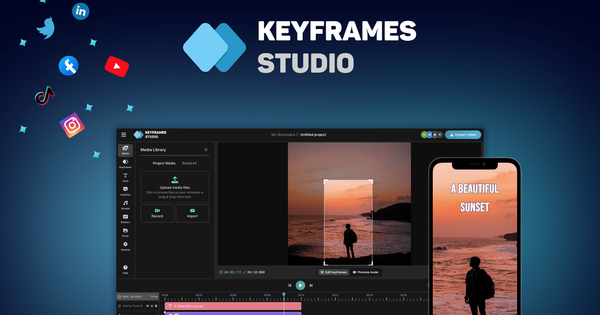
Keyframes Studio is an all-in-one cloud-based video editing platform designed specifically for creating, editing, and repurposing short-form videos optimized for social media platforms like TikTok, Instagram Reels, YouTube Shorts, and others. It allows users to upload media, record screen and camera simultaneously, apply dynamic camera movements through keyframes, add AI-generated subtitles, and export or post directly to social channels. The primary use cases include repurposing long-form content (such as podcasts, vlogs, gameplays, or tutorials) into engaging vertical or horizontal clips, creating quick screen recordings with overlays, and producing brand-consistent social media content without complex editing software.
The tool targets content creators, social media managers, digital marketers, podcasters, vloggers, and small agencies or teams who need fast, efficient video production for audience engagement on mobile-first platforms. It is particularly suited for non-professional editors who want professional-looking results with minimal learning curve, rather than developers or advanced filmmakers requiring full timeline control or effects libraries.
Key Features & Capabilities
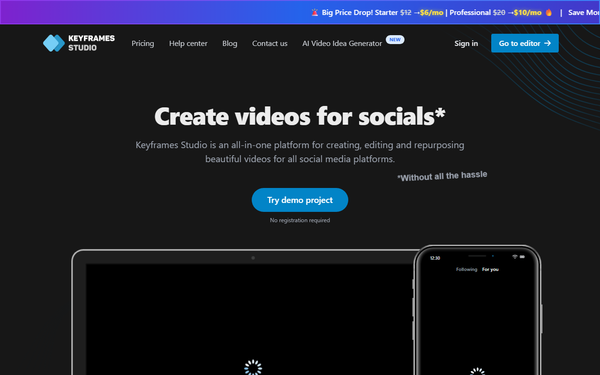
Core functionality revolves around an intuitive browser-based editor where users provide media (upload or record), set or auto-generate keyframes to control virtual camera panning, zooming, and cropping for dynamic storytelling, add subtitles, and export in social-optimized formats. Standout features include AI-powered automatic keyframe generation and catchy subtitles (supporting 12 languages with karaoke-style highlighting) that can be applied in two clicks to highlight key moments and boost engagement. Other capabilities include a brand kit for uploading and reusing fonts, colors, logos, images, videos, and audio assets; seamless team collaboration via shared workspaces; unlimited projects; and direct social media posting.
Differentiators from competitors (such as CapCut, VEED, or Kapwing) include the focused emphasis on keyframing for smooth camera movements tailored to social formats—automatically adapting horizontal content to vertical without manual cropping hassles—and the combination of recording, AI assistance, and one-click export in a single lightweight platform. It excels at making static or screen-recorded content feel cinematic and mobile-friendly.
Limitations include monthly quotas on AI generation and subtitles (resetting monthly with no rollover), lack of advanced professional editing tools like multi-track audio mixing, complex transitions, or effects libraries, and no offline desktop app. It is not positioned as a full replacement for tools like Adobe Premiere Pro. Some users report export delays or occasional failures, particularly with longer videos.
User Experience
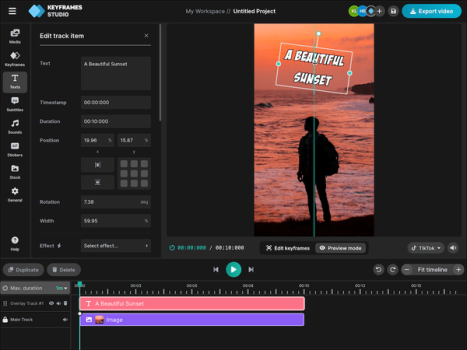
Keyframes Studio boasts a low learning curve with an intuitive, clean interface that prioritizes speed and simplicity—no prior video editing experience is required. The editor supports real-time previews, basic trimming/cropping/zooming, and live adjustments, making the workflow feel smooth and quick even for beginners. Documentation is minimal, with a basic blog post explaining keyframes and a YouTube intro video serving as primary resources; support is limited to email ([email protected]), which has drawn criticism from some users for slow or absent responses.
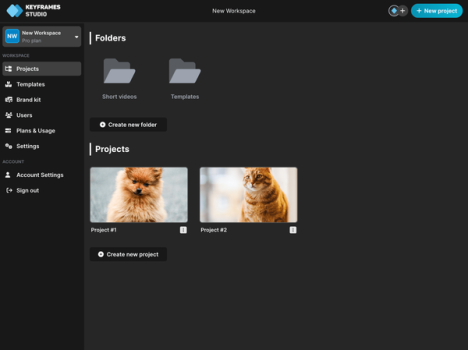
Overall interface quality is modern and browser-based, with templates and demo projects available for instant testing without sign-up. Collaboration features allow easy team invites and shared editing, enhancing productivity for agencies.
Performance & Reliability
As a cloud platform, Keyframes Studio performs efficiently for short-form social videos, with fast AI processing for keyframes and subtitles, and quick live previews. Uploads, recordings, and basic edits feel responsive in modern browsers. However, performance can vary with internet connection, and some users have reported slow exports (up to 20+ minutes for short clips) or rendering freezes/failures at 40-50% completion, especially on larger projects. Reliability issues appear more pronounced in older AppSumo lifetime deal feedback from 2023-2024, though the site remains active with updated pricing as of 2026. No widespread outages were noted in recent sources, but support responsiveness remains a common pain point.
Pricing & Value
Keyframes Studio offers a generous try-before-you-buy model: the editor is fully usable without a subscription, but exports without watermarks or hitting usage limits require a paid plan. Current plans (as of April 2026, with recent price drops and annual billing discounts):
- Starter: $5/mo (billed annually) or equivalent monthly – Unlimited projects, 5 seats, 20 GB storage, 60 min subtitles/mo, 30 min AI generation/mo, no brand kit.
- Professional (most popular): $8/mo (billed annually) – Unlimited projects, 20 seats, 50 GB storage, 120 min subtitles/mo, 60 min AI generation/mo, brand kit included.
- Enterprise: Custom pricing – Tailored seats, storage, and limits with dedicated support.
Plans include easy cancellation and no long-term contracts. Value is strong for the target audience of social-focused creators needing quick repurposing tools, especially compared to time-intensive alternatives or higher-priced suites. The AI features and keyframing simplicity provide high efficiency gains for the price, though heavy users may outgrow quotas quickly. Lifetime deal buyers from AppSumo (2022) reported mixed value due to export issues.
Practical Tutorial
Official resources include a blog post on keyframes and an introductory YouTube video (https://www.youtube.com/watch?v=F7LYs-syuD4). Here is a step-by-step walkthrough for a common task: repurposing a screen recording or uploaded video into a dynamic social media short with AI assistance (based on official descriptions and features; tested via demo editor at keyframes.studio/editor?template=demo).
-
Access the Editor: Go to https://keyframes.studio/ and click to open the editor (no sign-up needed for demo). Choose a template like "Podcast" or start blank.
-
Upload or Record Media: Click to upload your video file (e.g., a long podcast clip or screen recording) or use the built-in screen + camera recorder for live content. Add any brand assets if on Professional plan.
-
Generate AI Keyframes and Subtitles: With your media loaded, click the AI button (two-click process). The system automatically detects key moments, sets camera movement keyframes (pan/zoom to focus on speakers or actions), and generates catchy subtitles in your chosen language with karaoke-style word highlighting.
-
Refine Keyframes: Scrub the timeline to review AI-placed keyframes. Add or adjust keyframes manually by selecting a time point, positioning the virtual camera crop/zoom, and setting the next keyframe for smooth transitions. Use the live preview to ensure the story flows (e.g., zoom in on a product demo or pan across key text).
-
Customize Further: Trim clips, resize for vertical (9:16) or horizontal formats, add brand kit elements (colors, logo), adjust subtitle styling, and include background music from stock options if needed.
-
Preview and Export: Play the full video in the editor. Once satisfied, export as MP4 (optimized for social) or post directly to platforms like TikTok/Instagram. On free tier, exports may include watermarks until subscribed.
This process typically takes under 5 minutes for simple clips. For more examples, see the official blog: https://keyframes.studio/blog/how-to-use-keyframes.
Final Verdict
Overall rating: 4.2/5 – A solid, specialized tool that delivers on speed and simplicity for social video creation, with impressive AI assistance, but held back by occasional export reliability issues and limited advanced features.
Who should use this: Social media marketers, content creators, agencies, and podcasters focused on quick repurposing of long-form content into engaging shorts will benefit greatly from the intuitive keyframing, AI tools, and collaboration—especially if they value browser-based workflows over heavy desktop software.
Who should avoid this: Advanced video editors needing complex effects, unlimited AI usage, offline capabilities, or rock-solid enterprise support; users frustrated by potential export delays may prefer more mature alternatives like CapCut or Descript.
One-sentence recommendation: If you're tired of wrestling with complex editors just to make scroll-stopping social videos, Keyframes Studio is a fast, AI-smart solution worth trying for free in the editor.