Napkin AI Review: Turn Text into Professional Visuals Instantly
Overview & Purpose

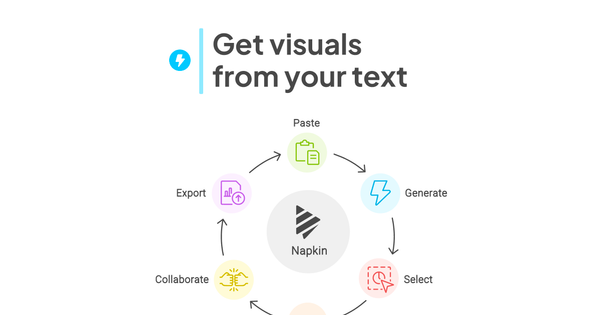
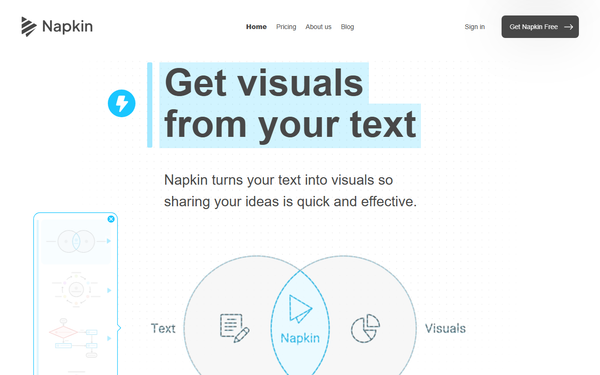
Napkin AI is an AI-powered visual storytelling tool that instantly transforms plain text—whether pasted, typed, or imported from files like PPT, DOC, PDF, or Markdown—into professional, editable diagrams, flowcharts, mind maps, infographics, charts, timelines, and more. It eliminates the need for complex prompting by intelligently analyzing your existing content and suggesting the most relevant visual representations automatically. Users simply select text blocks and click to generate options, then refine them in a seamless editor. This makes idea sharing faster and more effective than traditional design software or prompt-heavy AI tools.
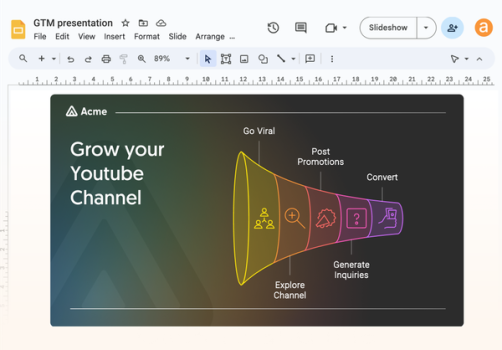
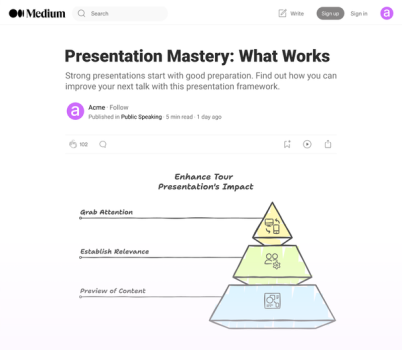
Primary use cases include creating impactful slides for presentations, engaging social media graphics, easy-to-read documentation, blog visuals, training materials, and brainstorming aids. It shines in business storytelling, professional development, education, and team communication.
The target audience encompasses non-design professionals such as project managers, growth marketers, founders, consultants, professors, teachers, school administrators, and executive teams who need quick, high-quality visuals without design expertise or hours spent in tools like PowerPoint or Canva. As of research in March 2026, it positions itself as a desktop-first solution (with mobile viewing support) for anyone prioritizing speed and clarity over pixel-perfect artistry.
Key Features & Capabilities
Core functionality revolves around a simple workflow: import or paste text into a Notion-like document canvas, hover over sections to reveal a blue “Generate Visual” button, review AI-suggested options (diagrams, processes, comparisons, etc.), insert your favorite, and edit freely. Edits include swapping from a vast icon library, adding dynamic connectors, applying decorators for emphasis, adjusting colors (light/dark mode compatible), selecting casual or formal fonts, and fine-tuning layout.
Standout features that differentiate Napkin AI include:
- Promptless generation — Works directly on your text in 60+ languages, removing the guesswork of prompt engineering common in competitors like Canva Magic Studio or Miro AI.
- Integrated text-visual canvas — Visuals live alongside original text for easy updates and context.
- Full editability and styles — Unlimited editing on all plans, with custom styles, brand kits (paid), and high-quality exports (PNG, PDF, SVG, PPT).
- Team collaboration — Real-time editing, comments, and feedback in Teamspaces (paid plans).
- File imports and exports — Unlimited imports of multiple formats; one-click export of individual visuals or entire documents as PDFs (continuous, A4, or 16:9 presentation layouts).
These features make it exceptionally fast for conceptual and structured content. Limitations include a credit-based generation system (~1 credit per word selected, with quotas varying by plan), desktop-only creation (mobile is view-only), English-only interface, occasional AI suggestions requiring manual tweaks for complex or abstract topics, no native data visualization from spreadsheets, and limited advanced integrations or pixel-perfect control compared to Figma or Lucidchart. It is not ideal for highly technical schematics or live data dashboards.
User Experience
Napkin AI boasts an exceptionally low learning curve, making it accessible even for complete design novices. The clean, distraction-free interface feels intuitive: a simple text editor with contextual generation buttons and a polished editing panel. Most users report being productive within minutes, thanks to the “forget prompting” philosophy and guided onboarding tutorial that appears after signup.
Interface quality is modern and responsive on desktop, with smooth real-time previews and easy element manipulation. Mobile support is limited to viewing shared Napkins, which some users find restrictive but aligns with the tool’s focus on thoughtful creation.
Documentation and support resources are solid: the official Help Center (help.napkin.ai) offers clear, step-by-step articles on getting started, generation, exporting, and billing. In-app chat and email support ([email protected]) provide quick responses, and community testimonials praise the simplicity. G2 users rate ease of use highly, contributing to an overall 4.4/5 platform score from verified reviews.
Performance & Reliability
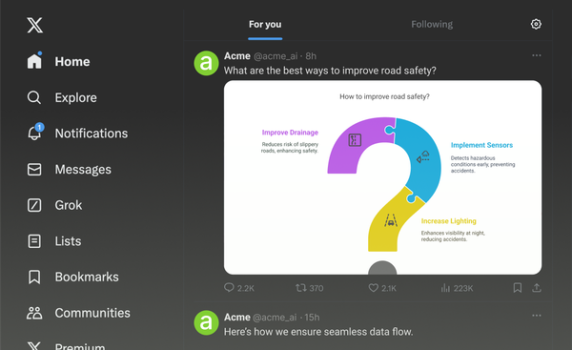
Generation is lightning-fast—often completing in under 10 seconds even for multi-section documents—delivering a reported 99% time savings versus manual design. The AI reliably produces logical, context-aware visuals for structured business or educational content, with high accuracy on processes, comparisons, and timelines. Editing is responsive, and exports maintain crisp quality.
Known issues include credit exhaustion on the free plan for frequent users, occasional structural misinterpretations (easily fixed by regenerating or manual adjustment), and repetitive style suggestions on repeated use. No widespread reliability complaints appear in recent reviews; minor frustrations center on the need for light editing or credit limits rather than downtime or crashes. Performance holds strong for its intended quick-visual workflow, though heavy or highly nuanced projects may require more iterations than specialized design tools.
Pricing & Value
Napkin AI offers a generous free tier alongside affordable paid plans, billed monthly or yearly (25% savings on annual):
- Free — $0 forever: 500 AI credits per week, unlimited editing/imports/PNG & PDF exports, standard icons and fonts, but includes Napkin branding on visuals.
- Plus (Popular) — $9 per person/month: 10,000 AI credits/month, removes branding, adds PPT/SVG exports, bold icons, 3 custom styles, basic team features.
- Pro — $22 per person/month: 30,000 AI credits/month, exclusive designs, unlimited custom styles/font uploads, advanced collaboration, brand kits.
- Enterprise — Custom pricing: contact sales for tailored needs.
Credits are consumed during generation (~1 per word selected) and reset periodically; unused credits do not roll over in lower tiers. Upgrades/downgrades are flexible with prorated billing.
Value is excellent for the time saved—users often recoup the cost in hours avoided on design work. Compared to alternatives like Canva (more manual effort) or Miro (stronger on collaboration but slower for solo quick tasks), Napkin delivers superior speed and simplicity at a lower entry price. The free plan suits light/occasional use, while paid tiers unlock professional polish for regular creators or teams.
Practical Tutorial
A step-by-step tutorial is readily available in Napkin’s official Help Center. Here is a practical walkthrough for a common task: turning a simple business process description into an editable flowchart (real example based on official guidance and user workflows).
-
Sign up and create your first Napkin (desktop only): Go to app.napkin.ai, sign in with Google or email/password. Click “Create my first Napkin” to start the onboarding tutorial.
-
Add or import content: Paste or type your text. Example: “Customer onboarding process: 1. Welcome email sent. 2. Account setup completed. 3. Training session scheduled. 4. First check-in call. 5. Feedback collected and success measured.”
-
Generate visuals: Hover over a text block (or select specific paragraphs) and click the blue “Generate Visual” button on the left. The AI produces several options (e.g., flowchart, timeline, steps diagram) in seconds.
-
Choose and insert: Scroll through suggestions, pick the best (e.g., vertical flowchart), select a style, and click to insert it into your document.
-
Polish the visual: Click the inserted visual to enter edit mode. Swap icons (search “email,” “calendar,” “check”), adjust connectors, change colors, add decorators for emphasis, or tweak text. Apply a built-in theme if desired.
-
Export or share: Hover the visual and click the export icon. Choose PNG (for web), SVG (scalable), PPT (for slides), or PDF. For the full document, click “Share” > “Download PDF” and select layout (continuous, A4, or presentation). Share a live link for collaboration.
This entire process typically takes under 2 minutes and produces presentation-ready results. For video guidance, search “How to Use Napkin AI” on YouTube or visit the official Getting Started guide: https://help.napkin.ai/en/articles/9991710-getting-started-with-napkin-ai.
Final Verdict
Overall rating: 4.5/5 — Excellent for speed and accessibility, with minor deductions for credit limits and customization depth.
Who should use this tool: Non-design professionals, educators, marketers, consultants, and small teams who need to turn text ideas into polished visuals quickly for presentations, docs, or content—Napkin saves hours and elevates communication without a steep learning curve or high cost.
Who should avoid this tool: Advanced designers seeking pixel-perfect control, data-heavy visualization users, or those requiring full mobile creation and heavy daily output without upgrading to paid plans.
One-sentence recommendation: Napkin AI is a game-changing time-saver for anyone who wants professional visuals from text in seconds—try the free plan today and upgrade when your workflow demands more credits and branding.