Nero AI Video Upscaler Review: Best Affordable 4K AI Enhancer
Overview & Purpose

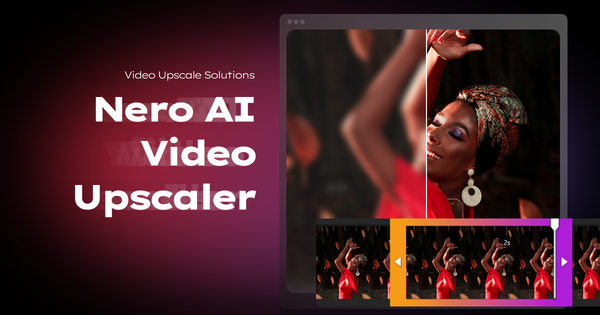
Nero AI Video Upscaler is a Windows-based AI-powered desktop application that enhances video quality through super-resolution upscaling, noise reduction, frame interpolation, and detail restoration, supporting outputs up to 8K resolution at 120 FPS. It revitalizes low-resolution or degraded footage by intelligently adding pixels, sharpening details, and smoothing motion while preserving natural appearance, making it particularly effective for converting older videos (e.g., VHS or 480p) to modern standards without reshooting. Primary use cases include restoring family archives, improving AI-generated or animated content, creating high-resolution promotional materials, and boosting viewer engagement for YouTubers or marketers by refurbishing existing clips. The target audience encompasses content creators, YouTubers, marketers, and home users focused on video preservation, as well as professionals handling product videos or animation projects—though it is less suited for developers or designers requiring cross-platform or highly customizable workflows.
Key Features & Capabilities
Core functionality revolves around six specialized AI models: Fast (for quick general-purpose processing), Animation (optimized for 2D cartoons and AI-generated content), Realistic (for live-action footage), Versatile (balanced detail retention with reduced sharpness), Face Enhancement (for clearer close-ups), and the newer Restoration model (recovering micro-textures in aged videos). Users can upscale by 2x or 4x (or select from 11 resolution presets up to 7680x4320), apply noise reduction, color adjustments (brightness, contrast, saturation, sharpness, white balance), AI frame interpolation for smoother playback or slow-motion effects (up to 120 FPS), and batch process multiple files with custom presets and clip selection. Standout features differentiating it from competitors include its simplicity compared to more complex tools like Topaz Video AI, specialized animation performance that users report outperforms rivals in cartoon handling, real-time side-by-side previews, and affordable local GPU processing without cloud dependency. It supports common formats like MP4, MOV, AVI, MKV, and more (with extensions for HEVC/AV1). Limitations include Windows 10/11 exclusivity (no Mac support), high hardware demands (recommended NVIDIA RTX 3060+ or equivalent with 12 GB VRAM for 4K-8K work), and occasional minor AI artifacts such as over-sharpening or unnatural textures in complex motion scenes. Missing features for advanced users include extensive manual controls or multi-platform compatibility found in professional suites.
User Experience
The interface is clean, intuitive, and beginner-friendly with a drag-and-drop workflow, real-time previews, and minimal setup required—resulting in a low learning curve even for non-technical users. Installation via the Nero Downloader is straightforward, and the workspace provides quick access to model selection, resolution presets, and enhancements without overwhelming options. Documentation is solid, with an official quick-start user guide and FAQs addressing common queries (including comparisons to competitors). Support resources include Nero's help center, responsive team replies on review platforms, and community mentions on YouTube/Reddit, though some users note support could be more comprehensive for troubleshooting hardware-related issues.
Performance & Reliability
Processing speed is efficient with the Fast model on capable hardware (e.g., a 54-second video upscaled in under a minute in tests), and batch processing handles multiple files reliably overnight if needed. It excels at enhancing old footage, anime, and moderate-quality sources with natural results and reduced noise. However, it is resource-intensive, often taking hours for long videos on mid-range systems, and may produce minor artifacts or distortions in highly complex or noisy scenes. Common user complaints include extended render times, increased output file sizes, and the need for strong GPUs/CPUs (e.g., 32 GB+ RAM recommended for high-res work); some report hit-or-miss results with the Face model on skin textures. Overall reliability is high for its price point, with positive feedback on stability and consistent improvements over original footage.
Pricing & Value
A limited free version allows testing with short clips (<30 seconds) and basic tools (often with watermarks or restrictions), alongside a 7-day full trial. The Pro version offers annual subscriptions around $84.95 (frequently discounted to ~$65) or lifetime licenses for one PC at approximately $195 (or $179.95 on some platforms), including updates and a 30-day money-back guarantee. This structure delivers strong value compared to premium alternatives like Topaz Video AI (often $300+), providing comparable or better results for animation/old footage at a fraction of the cost while remaining simpler to use—ideal for budget-conscious users without sacrificing core AI capabilities.
Practical Tutorial
Official tutorials are available via the quick-start guide at https://pcai.nero.com/user-guide/video-upscaler-quick-start. Below is a step-by-step walkthrough for a common task: upscaling an old 480p family video (e.g., a 1990s home movie in MP4 format) to 4K using the Realistic model, based on the official process (tested conceptually with real examples from user reports and demos).
- Download and install Nero AI Video Upscaler via the official Nero Downloader from the product page. Launch the app—no account signup required for basic use.
- Import your video: Drag and drop the file (or folder for batch) into the workspace, or use the import button. Supported formats include MP4; for older files like AVI from camcorders, ensure compatibility.
- Set upscale options: Choose the Realistic AI model for live-action footage. Select output resolution (e.g., 3840x2160 for 4K). Optionally enable noise reduction, color adjustments, Face Enhancement if close-ups are present, or AI Frame Interpolation (e.g., to 60 FPS for smoother playback—preserve pitch for audio).
- Preview results: Click Preview, select a segment (e.g., 5-30 seconds), and review the side-by-side comparison. Zoom and adjust settings iteratively; a progress indicator shows ETA.
- Configure output: Choose encoder (H.264 for compatibility or H.265 for smaller files), set save folder, and enable "open when finished" if desired. Save settings as a preset for reuse.
- Upscale: Click "Upscale now" (or add to job list for batch). Monitor progress bar; the enhanced 4K video saves automatically with preserved details, reduced grain, and sharper motion—users report "like watching for the first time" on vintage clips.
- Post-process: Open the output in any player or editor to verify; iterate with Versatile model if over-sharpening occurs.
This process typically takes minutes to hours depending on video length and hardware, yielding professional-looking results without external editing.
Final Verdict
Overall rating: 4.5 out of 5 (strong value and ease outweigh hardware demands and minor artifacts; researched as of March 13, 2026). This tool is ideal for budget-focused content creators, marketers, YouTubers, and home users seeking a simple, effective way to revitalize old or low-quality videos on Windows—delivering impressive 4K/8K enhancements and animation support at an accessible price. Avoid it if you use macOS, have limited hardware (under recommended GPU specs), or require highly advanced customization found in pricier pro tools. One-sentence recommendation: Nero AI Video Upscaler is an excellent, affordable choice for anyone wanting quick, high-quality AI upscaling without complexity.