Omnipilot Review: The Ultimate AI Copilot for macOS Power Users
Overview & Purpose
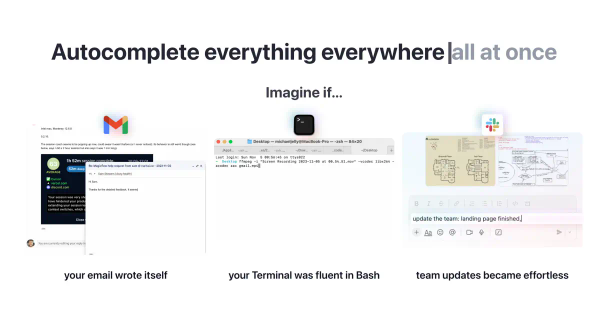
Omnipilot is an AI copilot built exclusively for macOS that brings intelligent autocomplete and context-aware text generation to any application on your system. By analyzing what's displayed on screen (including content from recently used apps), it allows users to trigger AI-assisted typing or full content generation directly in place—eliminating the need to copy-paste context or switch windows. Primary use cases include drafting professional emails, writing or debugging terminal commands, updating project notes or team status reports, composing social media posts, and accelerating code-related tasks in editors like Xcode.
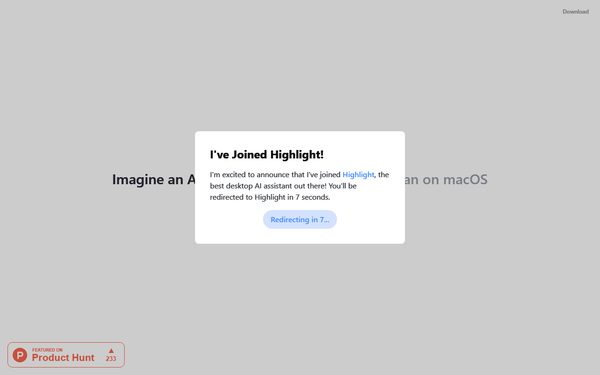
The tool targets macOS power users across roles: developers (for seamless terminal and code workflows), marketers and writers (for rapid email and copy creation), designers (for quick annotations or briefs), and general professionals who spend significant time typing repetitively. It positions itself as a universal “AI that types anywhere you can,” focusing on frictionless productivity rather than app-specific integrations. Research conducted as of March 11, 2026, notes that the original omnipilot.ai site now announces the founder’s integration into Highlight AI (highlightai.com), indicating the core technology has evolved into a broader desktop assistant while retaining similar screen-context capabilities.
Key Features & Capabilities
Core functionality revolves around a simple trigger (typically pressing Tab after partial typing or a custom shortcut) that invokes AI to complete or expand text based on full visual context from the active screen. It supports multiple frontier models in the background (including Claude 3.5 Sonnet, GPT-4o, and Gemini) and maintains conversation memory across sessions for consistent tone and details. Standout differentiators include true system-wide operation—no other macOS tool at launch offered inline generation in every native and web app without leaving your flow—and deep contextual understanding that incorporates not just the current field but surrounding UI elements, prior app states, and user history.
Compared to competitors like GitHub Copilot (code-only), Raycast AI (launcher-based), or local alternatives such as Cotypist, Omnipilot’s edge was its zero-friction, screen-aware universality. Limitations include macOS exclusivity in its original form (no Windows or Linux support at launch), reliance on cloud AI (requiring internet and raising privacy considerations around screen data), potential for occasional hallucinations or off-tone suggestions, and the absence of fully local processing. Missing features at the time of peak documentation included advanced automation scripting, native voice input, or cross-device sync—areas addressed in its successor Highlight AI.
User Experience
Setup involves a straightforward download and installation, followed by granting Accessibility and Screen Recording permissions in macOS System Settings—an essential step for context awareness that most users complete in under two minutes. The learning curve is minimal: the interface is intentionally invisible until triggered, preserving your native app experience. Once active, suggestions appear inline for instant acceptance or rejection, keeping users in flow without pop-up windows or mode switches. Documentation is light (primarily blog posts and a basic help section on the original site), with community support limited due to modest user base; no extensive video library or forum exists, though quick-start guidance appears in launch announcements.
Overall UX feels polished and native, earning praise for seamlessness in early feedback, though sparse reviews suggest it may feel “magical” once permissions are set but occasionally requires retriggering for complex contexts.
Performance & Reliability
Response times are generally snappy for short autocomplete tasks (under two seconds on standard hardware), with longer generations scaling based on model choice and context length. Efficiency shines in repetitive workflows, reportedly reducing typing volume by 50-70% for users in emails and terminals. Known issues are minimal in public discussions—no widespread outages or crashes reported—but common user notes include occasional inaccuracies when screen context is ambiguous, dependency on stable internet, and the need for occasional model switching for best results. Privacy-conscious users highlight the requirement for screen access as a potential concern, though no major data breaches have surfaced. Overall reliability is solid for daily use, with the low volume of complaints reflecting its niche but loyal early adoption.
Pricing & Value
Omnipilot operated on a freemium model: free download and basic usage (with limits on premium model calls), and paid plans starting at approximately $9–$10 per month for unlimited access and advanced features. No enterprise tier was prominently advertised for the original version. Compared to alternatives, it offered strong value for macOS users—cheaper than some dedicated writing assistants while delivering broader system integration than free tools like basic ChatGPT web access. Its successor, Highlight AI, maintains a generous free tier (unlimited base models) with a $20/month Pro plan, preserving excellent value for context-driven productivity. The proposition remains compelling for heavy typists, though users needing local-only processing may prefer paid one-time alternatives.
Practical Tutorial
While official video tutorials are limited (the project’s evolution to Highlight AI has shifted resources), the following step-by-step walkthrough is synthesized from product descriptions, launch demos, and user-shared workflows for a common task: drafting a professional email reply in Apple Mail.
-
Download and install Omnipilot from omnipilot.ai (or follow the redirect to Highlight AI for the current version). Launch the app and complete the one-time permission setup for Accessibility and Screen Recording in System Settings > Privacy & Security.
-
Open Apple Mail and navigate to an incoming email thread (e.g., a client request for project updates).
-
Begin typing naturally: “Hi Sarah, thanks for the update—regarding the Q2 deliverables,” then press the trigger shortcut (default Tab after a few words).
-
Omnipilot instantly analyzes the full email thread visible on screen, your previous replies, and any open project notes, then generates a complete, contextually appropriate continuation (e.g., summarizing progress, proposing next steps, and ending with a call to action). Accept with Tab/Enter, edit inline, or regenerate with a quick command.
-
For refinement, highlight a section and re-trigger to expand or rephrase while preserving tone.
Real example outcome: Instead of 10 minutes of manual drafting, the AI produces a polished 150-word reply referencing exact dates and action items pulled from the visible screen in seconds. For terminal users, the same flow works: type “git commit -m ” and Tab to receive a commit message auto-generated from changed files shown on screen. For deeper guidance, refer to archived blog posts on omnipilot.ai or explore Highlight AI’s updated resources at highlightai.com.
Final Verdict
Overall rating: 3.7/5. Omnipilot (and its evolved form in Highlight AI) should be used by macOS professionals and power users who want to eliminate repetitive typing across every app and value seamless, screen-aware assistance—saving hours weekly while minimizing context-switching errors. Avoid it if you prioritize strict local privacy, require cross-platform support (pre-evolution), or prefer fully open-source tools with heavy customization. One-sentence recommendation: If you live in macOS apps and dread repetitive typing, Omnipilot’s context magic (now living on in Highlight AI) is a productivity game-changer worth installing today.