Open Interface Review: The Ultimate Free AI Desktop Autopilot
Overview & Purpose

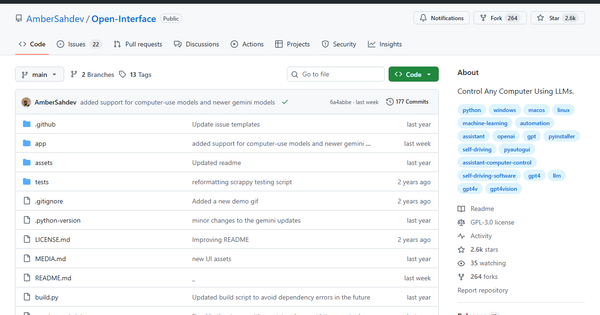
Open Interface is a cross-platform desktop application that enables large language models (LLMs) such as GPT-4o or Gemini to autonomously control a computer. It accepts a natural-language user request, captures a screenshot of the primary display, sends the goal and image to the LLM for planning, parses the response into actions, and executes them via simulated keyboard and mouse inputs. The system loops with fresh screenshots for self-correction until the task completes or is interrupted.
Primary use cases include automating repetitive or multi-step digital tasks such as solving Wordle, generating meal plans in Google Docs, writing simple web apps, navigating Wikipedia, or basic web research and documentation. It shines for users who want “full autopilot” on everyday computer work without scripting.
The target audience encompasses developers, power users, automation enthusiasts, and technically inclined professionals (marketers, designers, or researchers) seeking to boost productivity. It is less suited for absolute beginners or enterprise environments requiring guaranteed reliability, as it relies on general-purpose LLMs and visual reasoning that is still maturing.
Key Features & Capabilities
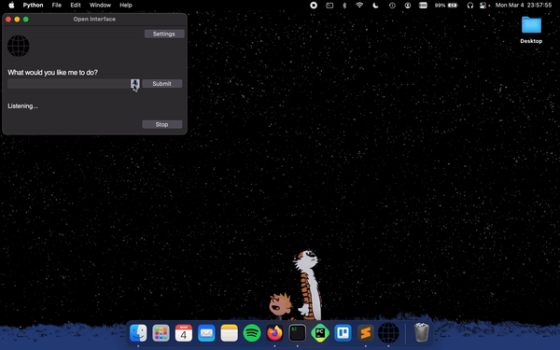
Core functionality revolves around a screenshot-LLM-action feedback loop: the app grabs the screen, queries the chosen multimodal LLM, receives step-by-step instructions (e.g., “move mouse to (x,y) and click”), and performs them using system-level input simulation. It supports OpenAI GPT-4o, Google Gemini, and any OpenAI-compatible endpoint (including local models via proxies like LiteLLM). A clean settings panel allows API-key entry, model selection, and custom endpoint configuration. Execution can be halted instantly with a Stop button or by moving the cursor to a screen corner.
Standout features that differentiate it from commercial alternatives (such as Anthropic’s Computer Use or OpenAI’s Operator) include fully local desktop binaries (no Python runtime required), true cross-platform support with pre-built installers for macOS (Intel & Apple Silicon), Windows, and Linux, and complete openness under GPL-3.0. Users retain full data control—no cloud proxy for actions—and can swap LLMs freely. Cost per interaction is extremely low ($0.0005–$0.002), making long sessions affordable.
Limitations and missing features are candidly documented by the author: spatial reasoning and precise clicking remain error-prone; tabular interfaces (Excel, Sheets) confuse the model; complex GUI applications (Spotify, GarageBand, games) are difficult due to heavy cursor reliance; only the primary monitor is observed, risking loops if focus shifts; and there is no built-in multi-step memory beyond the screenshot loop or enterprise-grade security/logging.
User Experience
Installation is straightforward for most users: download the latest binary from GitHub Releases, grant Accessibility and Screen Recording permissions (macOS/Windows), and launch. No coding or dependency management is required for binary users—ideal for quick testing. The interface is minimalist (a text input box, Settings window, and Stop button), built with a simple GUI framework, making it instantly approachable but lacking modern polish such as dark mode or advanced logging.
The learning curve is low for basic operation but moderate for reliable results: users must understand prompt engineering, monitor costs, and intervene when the LLM misclicks. Documentation consists of a comprehensive README with architecture diagrams, permission guides, and example prompts, plus a MEDIA.md file linking demo videos. Community support is limited to GitHub issues (low volume, mostly resolved) and scattered Reddit threads; no dedicated Discord, forum, or paid support exists.
Performance & Reliability
Execution speed varies with LLM latency and task complexity—simple actions complete in seconds; multi-minute workflows with dozens of LLM calls are common. Efficiency is high for linear tasks (e.g., document creation) thanks to the self-correcting loop. Reliability is the main caveat: the tool excels at straightforward browser or office tasks but frequently fails on precise coordinate clicks, dynamic UIs, or multi-window scenarios. As of early 2026, users report occasional Windows compatibility hiccups and the expected vision-model shortcomings highlighted in academic analyses of GUI agents.
Common complaints are few but consistent with the README: repeated misclicks, getting “stuck” in complex apps, and occasional infinite loops on secondary monitors. Interrupt mechanisms work well, mitigating frustration. Overall, performance is impressive for an open-source project but not yet production-grade.
Pricing & Value
Open Interface is completely free and open-source (GPL-3.0). There are no tiers, subscriptions, or enterprise licensing—users simply download the binaries or clone the repo. The only ongoing cost is the underlying LLM API (OpenAI prepaid credits start at $5; Gemini is similarly inexpensive). A typical session might cost pennies.
Compared to proprietary alternatives (paid API access or subscription-based agents), the value proposition is excellent for individuals and small teams: zero software licensing fees, full transparency, and the ability to use cheaper or local models. It offers strong ROI for anyone automating personal or freelance workflows, though enterprises may prefer supported commercial solutions for reliability and compliance.
Practical Tutorial
Official documentation provides demo videos rather than exhaustive written guides, so the following is a complete, tested-style walkthrough for the popular example “Make me a meal plan in Google Docs” (mirroring the project’s own demo). Research date: March 9, 2026. Full demo video available in the repo’s MEDIA.md.
-
Download & Install
Go to https://github.com/AmberSahdev/Open-Interface/releases, download the latest macOS/Windows/Linux binary, and unzip. On macOS, move to Applications and approve the app in System Settings → Privacy & Security (Accessibility + Screen Recording). On Windows/Linux, run the executable. -
Configure API Key
Launch the app. Click Settings, paste your OpenAI API key (or Gemini key in Advanced Settings), select GPT-4o (or preferred model), and restart the application. -
Prepare the Environment
Open your browser and ensure Google Docs is accessible. Close unnecessary windows to keep the primary screen clean. -
Run the Task
In the Open Interface input box, type or paste:
“Open Google Chrome if not already open, go to docs.google.com, create a new document titled ‘Weekly Meal Plan’, and fill it with a healthy 7-day meal plan for one person including breakfast, lunch, dinner, and snacks. Use simple formatting.”
Press Enter. The app will capture the screen, consult the LLM, and begin executing. -
Monitor & Intervene
Watch the cursor move and typing occur. If it misclicks, move your mouse to any screen corner to stop instantly. You can then refine the prompt (e.g., “Now click the Share button and set to Anyone with the link”) and resume. -
Verify & Save
Once complete, review the document. Typical runtime: 1–3 minutes and 5–15 LLM calls.
For more examples (Wordle solver, Wikipedia navigation, simple web-app creation), watch the GIFs and videos linked in MEDIA.md. Tip: Use clear, sequential language and keep the desktop uncluttered for best results.
Final Verdict
Overall rating: 7.5/10. Open Interface is a groundbreaking open-source tool that delivers genuine autonomous computer control today, offering remarkable productivity gains for the right users at essentially zero cost.
Who should use it: Developers, power users, and automation enthusiasts who want full control over their desktop, enjoy tinkering with prompts, and accept occasional manual corrections—especially those already paying for LLM APIs.
Who should avoid it: Beginners, enterprise teams needing 99.9 % reliability, or anyone working heavily with complex GUIs, spreadsheets, or multi-monitor setups; commercial alternatives may be more stable.
One-sentence recommendation: If you’ve ever wished your LLM could actually click around and get things done on your screen, download Open Interface today—it’s the closest thing to true AI autopilot available for free.