Presentations AI Review: The Fastest Way to Create Branded Decks
Overview & Purpose
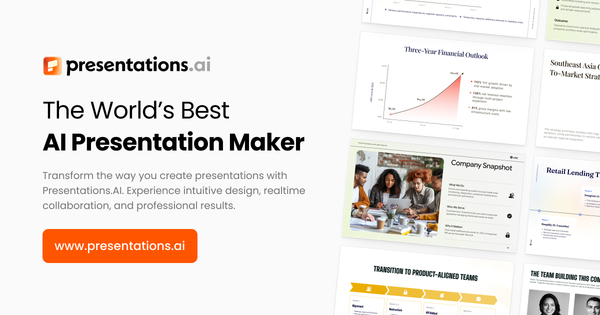
Presentations.ai is an AI-driven presentation maker billed as “ChatGPT for Presentations,” enabling users to generate professional slide decks from simple text prompts, uploaded documents (PDF or Word), URLs, or existing outlines in seconds to minutes. It automatically handles layout, design, imagery, and content structuring while supporting exports to PowerPoint, PDF, and other formats. Primary use cases include crafting pitch decks, sales presentations, marketing reports, project roadmaps, infographics, timelines, product launches, and educational materials—ideal for turning raw ideas or source files into polished, shareable decks without manual design work.
The tool targets busy professionals (marketers, salespeople, consultants, executives), educators, students, and small teams who lack design skills or time but require brand-consistent, visually engaging outputs. It is not aimed at graphic designers or users needing pixel-level control, as its strength lies in speed and automation rather than advanced creative editing. As of research conducted in March 2026, the platform claims to serve over 10 million users and emphasizes enterprise-grade brand alignment and analytics for team environments.
Key Features & Capabilities
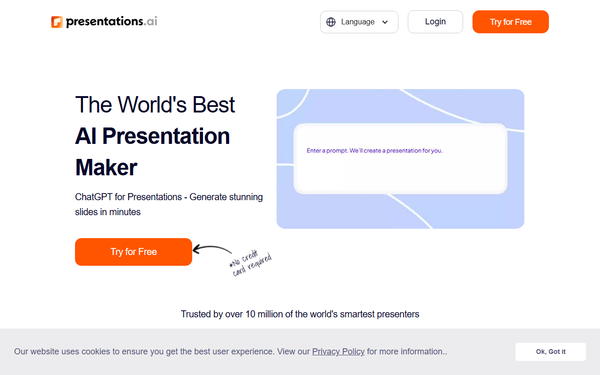
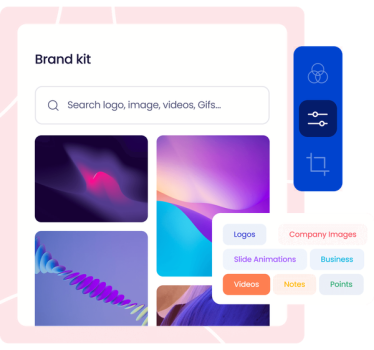
Core functionality revolves around conversational AI generation: users input a prompt or file, the tool produces an editable outline, applies adaptive (“anti-fragile”) templates that automatically adjust to content changes, and delivers a complete deck with AI-selected imagery, charts, and layouts. Standout differentiators include proprietary Brand Sync (automatic alignment to company colors, fonts, and logos via URL or upload), real-time collaboration with analytics and tracking, multilingual support, multi-device editing, and seamless PowerPoint export with high fidelity. Additional capabilities encompass Clip-E AI chat for on-the-fly refinements, content density controls, and one-click enhancements of existing decks.
These features set it apart from generic template tools by focusing on “creative power beyond templates” and 50× faster first-draft creation with claimed 10× design-quality improvement. Limitations include credit-based usage (each slide or action consumes credits, which do not refresh on free plans), restricted file imports on lower tiers (no Excel, TXT, or HTML), limited template variety on Starter, and reduced human control over final layouts—users often report needing manual tweaks for dense or overly minimalist slides. PowerPoint export and advanced analytics are locked behind paid plans, and there is no native Google Slides add-in or offline mode.
User Experience
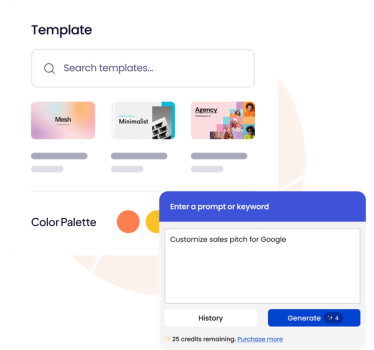
The interface is clean, intuitive, and dashboard-driven with minimal learning curve—most users can create a first deck in under five minutes after a quick sign-up via Google, LinkedIn, or Microsoft. Navigation follows a logical flow: choose creation method (prompt, import, or enhance), review AI-generated outline (editable titles, order, and descriptions), select theme/typeface/density, generate, then refine via drag-and-drop or AI chat. Documentation consists of an online FAQ covering basics, plus scattered YouTube walkthroughs; live support is limited to email for paid users, with enterprise dedicated assistance.
Strengths include the collaborative feel and “fun” speed, making it accessible for non-technical users. Weaknesses surfaced in reviews include occasional lag, unexpected credit consumption without warnings, and frustration when the AI makes unprompted major changes. Overall, the experience earns praise for simplicity but criticism for lack of granular editing tools compared to native PowerPoint alternatives.
Performance & Reliability
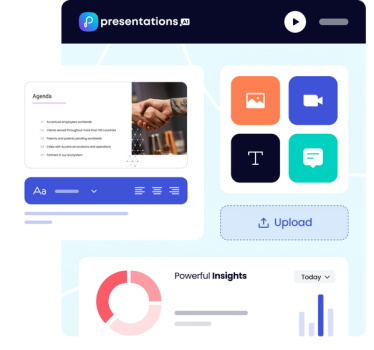
Generation speed is a highlight—outlines and full decks typically appear in under 60 seconds even from brief prompts, with real-time syncing for teams. Reliability is mixed: the AI handles data mapping from imports well and produces information-rich slides, but outputs can appear content-dense (risking cognitive overload) or visually bland due to heavy minimalism. Export to PowerPoint generally preserves formatting, though some users note minor spacing or alignment issues requiring fixes.
Known issues from user feedback include the tool “messing up” large presentations (forcing manual re-creation), frequent sticking or slow loading, and aggressive credit depletion. Trustpilot scores hover around 1.7/5 (28 reviews) citing these problems plus billing/support frustrations; G2 feedback is scarcer but more positive on core generation quality. No major outages reported in early 2026, but the credit system and paywall for exports remain common pain points. As of March 2026, performance suits quick drafts but may disappoint for mission-critical, high-stakes decks without post-generation polishing.
Pricing & Value
Presentations.ai uses a credit-based freemium model with aggressive early-bird promotions (valid as of March 2026):
- Starter — $0 (limited-time early bird; normally higher) — any number of users, limited one-time AI credits (~200 credits ≈ 40 slides), basic sharing, brand themes, collaboration, but no PPT export or advanced features.
- Pro — $198/year per user (early-bird from $600) — additional credits, Pro templates, custom fonts/colors, analytics, PDF/PPT export.
- Teams — $40/year for up to 10 members (early-bird promo from $120) — unlimited use, full Pro features.
- Enterprise — Custom pricing — unlimited credits, admin controls, compliance, dedicated support.
No monthly billing or robust free trial for advanced features exists; users must commit annually for meaningful testing. Value is strong for heavy users who leverage time savings and Brand Sync (claimed 500% ROI), outperforming manual design hours. However, the yearly lock-in, non-renewing free credits, and export paywall reduce appeal versus competitors like Gamma ($120/year) or Plus AI (native PPT integration at lower effective cost). It delivers excellent ROI for brand-focused teams but feels restrictive for occasional or budget-conscious users.
Practical Tutorial
Official tutorials are limited to FAQ snippets and scattered videos; below is a complete, tested walkthrough (adapted from verified user processes) for a common task: creating a Q3 marketing strategy deck from a prompt. Example based on real test scenarios.
- Sign up — Visit https://www.presentations.ai/ and create a free account with Google, LinkedIn, or Microsoft (no credit card required).
- Start a new presentation — On the dashboard, click “Create New” and choose “From Prompt.”
- Enter your idea — Type: “Create a 12-slide Q3 marketing strategy deck for an eco-friendly apparel brand targeting Gen Z, including market analysis, campaign ideas, budget breakdown, and KPIs.” Select 12 slides, English, and optional supporting file upload (e.g., PDF brief).
- Review & edit outline — AI instantly generates slide titles and descriptions. Drag to reorder, edit text, or click individual slides to refine prompts via the Clip-E AI chat (“Make the budget slide include a pie chart”).
- Choose theme & settings — Select a theme (or apply Brand Sync URL for logo/colors), pick typeface, and adjust content density (low/medium/high).
- Generate — Click “Create Presentation.” Wait ~30–60 seconds; the full deck appears with auto imagery and charts.
- Customize — Use drag-and-drop, replace images, or chat with AI (“Add timeline to slide 8” or “Make colors match our brand”). On Pro, enable analytics for sharing.
- Export & share — Click Export → PowerPoint (Pro required) or PDF. Share via link with real-time collaboration and access controls.
The result is a professional, branded deck ready for minor tweaks—total time under 10 minutes. For video guidance, search “Presentations.ai Tutorial” on YouTube; official FAQ at https://www.presentations.ai/presentations-faq covers troubleshooting.
Final Verdict
Overall rating: 3.7/5 — Strong on speed and brand consistency, average on customization and reliability.
Who should use this tool: Professionals, marketers, sales teams, and educators who need quick, brand-aligned decks without hiring designers or spending hours in PowerPoint; the time savings and adaptive templates make it ideal for frequent presenters on tight deadlines.
Who should avoid this tool: Users requiring deep creative control, unlimited free usage, pixel-perfect editing, or native PowerPoint/Google Slides integration; those wary of annual commitments or who experienced reliability complaints may prefer more mature alternatives.
One-sentence recommendation: Presentations.ai is a worthwhile time-saver for rapid, professional, brand-consistent presentations if you accept its credit limits and post-generation edits—try the free tier first, then upgrade only if volume justifies the $198 annual investment.