Right Click Prompt Review: The Ultimate AI Prompt Manager

Overview & Purpose
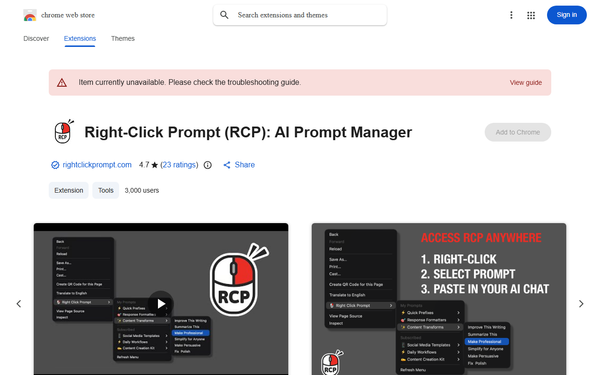
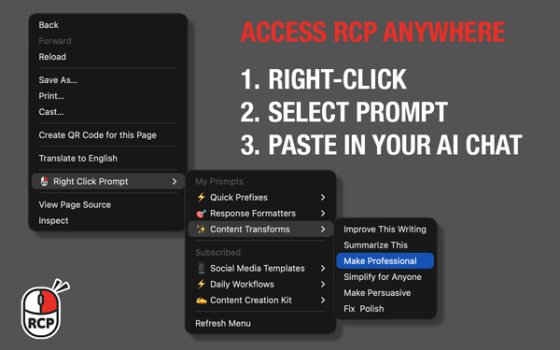
Right Click Prompt (RCP) is a Chrome browser extension and web-based prompt management system that allows users to save, organize, and instantly reuse custom AI prompts directly from the right-click context menu in any text input field. Instead of copying and pasting from notes, chats, or documents, users can highlight text (or not), right-click, and insert a pre-saved prompt into tools like ChatGPT, Claude, Gemini, Gmail, Notion, Slack, or any website with a text field. It includes a central web dashboard at rightclickprompt.com for managing prompts, with optional cloud sync across devices and browsers.
Primary use cases include streamlining repetitive AI tasks such as content writing, editing, summarization, coding assistance, research, and team collaboration. It eliminates the friction of retyping or searching for proven prompts, enabling faster, more consistent AI workflows. Target audience encompasses power users of AI tools—content creators, marketers, writers, developers, researchers, and especially teams that need standardized prompts for quality control and onboarding. It appeals to anyone who interacts with AI daily and values speed and reusability over one-off prompting.
(Research conducted as of April 9, 2026; the tool is still in beta with active development following a major update in January 2026.)
Key Features & Capabilities
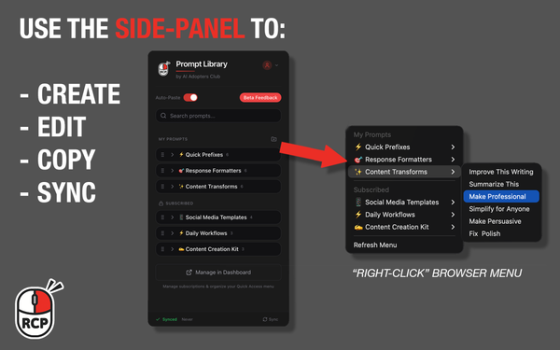
Core functionality revolves around the right-click context menu integration: saved prompts appear under a dedicated "Right Click Prompt" submenu for one- or two-click insertion. The web dashboard supports creating, editing, organizing into folders, full-text search, drag-and-drop to a "Quick Access" bar, version history with rollback, usage analytics (tracking frequency, streaks, and time saved), import/export (JSON), auto-paste options, and trash recovery.
Standout differentiating features include:
- Universal compatibility across any AI platform or text field (unlike ChatGPT-specific tools like AIPRM).
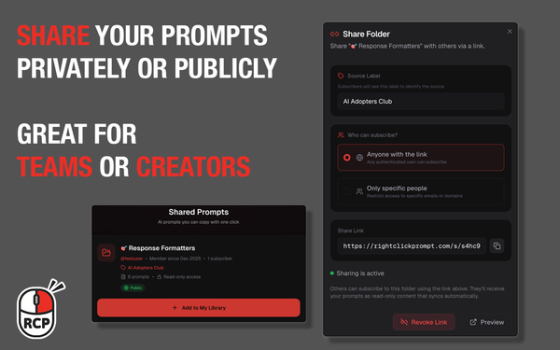
- Team sharing via subscription links: owners publish folders; team members subscribe for automatic updates, ensuring consistency without manual syncing.
- Optional secure cloud sync combined with privacy-first local storage.
- Mobile-friendly dashboard for on-the-go management.
- Built-in analytics and version history not commonly found in simpler prompt managers.
Limitations include restriction to Chromium-based browsers (Chrome, Edge, Brave, etc.), potential conflicts on sites that heavily customize or disable right-click menus (e.g., certain advanced editors like Google Docs in some scenarios), and a focus exclusively on personal/team libraries rather than a large public/community prompt marketplace. No native support for non-Chromium browsers or offline-only use beyond basic local storage was noted, and enterprise-level features (e.g., advanced admin controls) are not yet detailed.
User Experience
RCP boasts a low learning curve and intuitive design. Installation takes seconds via the Chrome Web Store, after which the RCP icon appears in the toolbar for quick dashboard access. The interface is described by users as "simple, elegant, easy to use" and "cleanly, efficiently, and without bloat," with minimal permissions required (primarily for context menu and selected text).
Prompt creation and organization feel natural via the dashboard, with folders preventing clutter and Quick Access prioritizing favorites. Right-click insertion keeps users in flow without tab-switching. Documentation includes an official blog with guides on setup, team sharing, and best practices, plus YouTube tutorials from the developer. Support is available via the site (rightclickprompt.com/about), though as a smaller tool, it relies more on self-service resources than extensive help centers. User testimonials highlight its "handy" organization for complex workflows like book writing.
Performance & Reliability
The extension performs efficiently with near-instant right-click menu loading and prompt insertion, reducing multi-step copy-paste workflows to two clicks and accumulating significant time savings for heavy users. It handles unlimited prompts (capped at 25,000 in current plans) without noticeable slowdowns, and cloud sync (when enabled) keeps libraries consistent across devices.
Reliability is high based on available data: 4.7/5 stars from 23 ratings on the Chrome Web Store with ~3,000 users, and no widespread complaints or critical issues surfaced in recent searches. Minor notes include manual enablement in incognito mode and occasional context menu overrides on customized sites. As a relatively new tool (with version 2.0.1 in January 2026), long-term scalability for very large teams remains untested at scale, but privacy handling is emphasized with no data selling or ads.
Pricing & Value
RCP is currently free during its beta phase, offering full access (including cloud sync, team sharing, analytics, and up to 25,000 prompts) with a 7-day trial for new users (no credit card required). Post-beta, Pro pricing is $4.83/month (billed annually) or $6/month. This unlocks continued full features with no mentioned tiered limits on core functionality.
Value is strong for frequent AI users: the seamless integration and team features provide a clear edge over free manual methods (notes/apps) or more specialized competitors like AIPRM (which is platform-limited and community-focused). At under $5/month annually, it delivers high ROI through time savings and consistency, especially for teams. It lacks a free tier post-beta with restrictions, which could deter very casual users, but the beta window makes it an excellent time to build a library. No enterprise options are explicitly listed.
Practical Tutorial
Official resources include YouTube videos (e.g., "Save Your Best AI Prompts & Paste Anywhere") and blog guides at rightclickprompt.com/blog. Below is a step-by-step walkthrough for a common task—creating and using a "Summarize This" prompt—based on verified usage patterns.
-
Install the Extension: Visit the Chrome Web Store page and click "Add to Chrome." Confirm permissions. The RCP icon will appear in your toolbar.
-
Sign In and Access Dashboard: Click the RCP icon > open the dashboard at rightclickprompt.com (or via the link). Create a free account for cloud sync and team features.
-
Create a New Prompt: In the dashboard or via the extension popup, click "+ Add New Prompt." Name it "Summarize This." Enter the prompt text:
Please summarize the following text into three clear and concise bullet points. Focus on the main arguments and conclusions. Here is the text: "{{selection}}"
(The{{selection}}variable automatically inserts any highlighted text.) Add it to a folder like "Writing Tools" and drag to Quick Access if desired. Save. -
Use the Prompt: On any webpage (e.g., a long article in ChatGPT or a browser tab), highlight text. Right-click > hover over "Right Click Prompt" > select "Summarize This." It auto-inserts into the active field or opens a new AI tab pre-populated.
-
Organize and Iterate: Edit via the pencil icon in the popup/dashboard. Test, use version history to revert changes, and monitor analytics for usage.
For teams: Create a folder in the dashboard, enable sharing to generate a link (e.g., rcp.ad/abc123), distribute it, and subscribers get automatic updates. Review monthly for best results.
Final Verdict
Overall rating: 4.5/5 – A polished, privacy-conscious tool that excels at solving a specific pain point with elegant simplicity.
Who should use this: Developers, content creators, marketers, writers, and teams who reuse AI prompts daily and want frictionless, cross-platform access without leaving their workflow. It shines for those prioritizing personal libraries and consistency over community templates.
Who should avoid this: Casual or infrequent AI users (who may not need paid access post-beta), users on non-Chromium browsers, or those seeking a vast public prompt marketplace rather than custom organization.
One-sentence recommendation: If you’re tired of hunting for your best prompts, Right Click Prompt turns them into an always-available superpower via right-click—highly recommended for serious AI power users.