Unscreen Review: The Best AI Video Background Remover?

Overview & Purpose

Unscreen was an innovative online AI-powered tool designed to automatically remove backgrounds from videos and GIFs without requiring green screens, manual pixel selection, or complex editing workflows. By leveraging machine learning, it processed uploaded clips to produce transparent-background outputs suitable for compositing in video editors or direct use in presentations and social media content. Primary use cases included creating professional-looking talking-head videos for YouTube, TikTok, and Instagram Reels; producing explainer animations; enhancing marketing materials; and streamlining post-production for filmmakers or educators who wanted quick, location-agnostic footage.
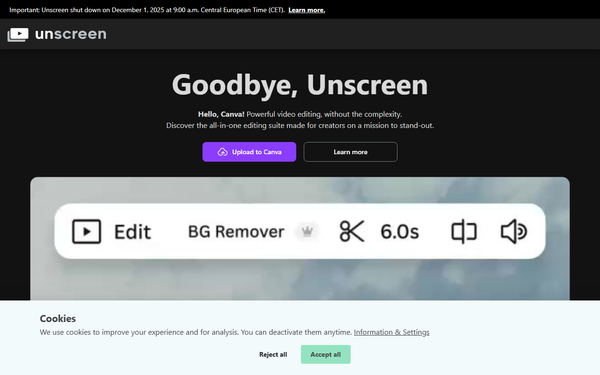
The target audience encompassed content creators, social media marketers, graphic designers, video editors, and small business owners who needed fast background removal but lacked access to professional studios or advanced software skills. It appealed particularly to non-technical users seeking a browser-based solution rather than desktop apps like Adobe After Effects or DaVinci Resolve. Note: As of April 2026, Unscreen.com has been permanently shut down since December 1, 2025, following its 2021 acquisition by Canva. The standalone service was discontinued, with users directed toward Canva’s integrated video editing tools that incorporate similar AI capabilities.
Key Features & Capabilities
Core functionality centered on fully automated AI background removal that analyzed motion and subject edges frame-by-frame, supporting common formats such as MP4, MOV, AVI, WebM, and GIF. Outputs typically included a color video file paired with an alpha channel (transparency) mask, allowing seamless layering in editing software. Standout features that differentiated it from competitors like Remove.bg’s video tool or CapCut included true one-click processing with no manual masking, support for full-length clips in paid tiers, audio preservation, full HD resolution, and absence of watermarks on Pro exports. It also offered a dedicated Pro Plugin for Adobe Premiere Pro and After Effects, enabling direct import of processed bundles without leaving the editing environment.
Additional capabilities included hCaptcha protection for uploads and adherence to a standard Privacy Policy and Terms of Service. Limitations were notable: the free tier restricted videos to approximately 5 seconds with SD quality and watermarks; complex scenes involving fast motion, fine hair details, or cluttered backgrounds sometimes produced imperfect edges or artifacts; and outputs often required a secondary compositing step in editing software (e.g., combining alpha.mp4 and color.mp4 files). No native 4K support existed at shutdown, and real-time processing was unavailable.
User Experience
Unscreen earned praise for its exceptionally low learning curve and intuitive interface. Users simply dragged and dropped a video file onto the homepage, waited for automatic processing (with a preview option), and downloaded results—making it accessible even for beginners. The clean, minimalist web design prioritized speed over clutter, though it relied on cloud processing, meaning upload/download times varied with file size and internet speed.
Documentation consisted of basic on-site guides and blog posts (now largely archived post-shutdown), with community support through forums and occasional email responses. The Pro Plugin integration with Adobe apps was straightforward for existing subscribers. However, some users reported frustration with download formats (e.g., GIF-only options despite paying for MP4) and the need for external tools to finalize transparent videos. Overall, the experience was streamlined and beginner-friendly, though occasional technical hiccups with file handling reduced satisfaction for advanced users.
Performance & Reliability
Processing speed was generally efficient for short-to-medium clips (under 1 minute), with AI analysis completing in seconds to a couple of minutes depending on server load and video length. Reliability was strong for simple subjects like static talking heads, delivering crisp edges and natural motion consistency superior to frame-by-frame tools. Full-length clips and HD exports performed well in Pro plans, with audio remaining intact.
Known issues included occasional edge artifacts around hair or translucent objects, flickering in high-motion scenes, and inconsistent results on low-contrast footage. User complaints on platforms like Trustpilot highlighted paid processing failures, such as incomplete exports or the aforementioned alpha/color file requirement, leading some to label it unreliable for professional deadlines. Post-shutdown, no further updates or fixes were possible. Common feedback noted it outperformed free mobile apps but lagged behind premium desktop AI tools in edge-case handling.
Pricing & Value
Unscreen operated on a freemium model with a limited free tier (short clips, watermarks, lower resolution) and flexible paid options. Pay-as-you-go was approximately $4.99 per video minute, while subscription plans started around $9/month for 3–10 minutes of processing, scaling to $99/month for higher volumes (e.g., 200 minutes) with full HD, no watermarks, and priority support. Enterprise-level or higher-credit plans existed for studios. The Adobe plugin was free for Pro subscribers.
Value proposition was solid for occasional users needing quick results without green-screen setups, offering better automation than many alternatives at the time. However, costs could escalate quickly for longer videos, and the requirement to composite files in external editors diminished perceived value for some. Compared to competitors (e.g., Runway ML or DaVinci Resolve’s built-in tools), it was more affordable for simple tasks but less versatile overall. Refunds for unused time were issued upon shutdown.
Practical Tutorial
Prior to its December 2025 shutdown, Unscreen’s process was straightforward. Here is a step-by-step walkthrough for a common task—removing the background from a 30-second talking-head video for social media compositing (based on archived user guides and reviews; the service is no longer operational):
-
Navigate to unscreen.com (now redirected to Canva) and drag your MP4 video file onto the upload area or click “Choose File.” Ensure the clip is under free-tier limits or that you have an active Pro account.
-
The AI automatically begins processing—no selections or parameters needed. A progress bar and preview thumbnail appear within seconds.
-
Once complete, review the side-by-side before/after comparison. For Pro users, select full HD and confirm audio inclusion.
-
Download the results: You typically receive a ZIP containing color.mp4 (the foreground video) and alpha.mp4 (transparency mask). Import both into Adobe Premiere Pro or After Effects.
-
In your editor, place the alpha file as a track matte or use the plugin (if installed) for one-click import. Composite over a new background, adjust edges if minor cleanup is needed, and export.
For official historical tutorials, archived blog posts like “How to Remove Video Background in Premiere Pro” were available on the site. Alternatives such as Canva’s current AI tools or unscreen.pro (a third-party successor) follow similar drag-and-drop flows today.
Final Verdict
Unscreen earned a 4.2/5 rating for its era as a pioneering, effortless AI video background remover that democratized professional-looking content creation. It excelled for casual creators and marketers who valued simplicity over perfection, particularly those integrating with Adobe workflows. However, it should be avoided now due to its complete shutdown—users seeking the same functionality will encounter dead links and no active service. Current alternatives like Canva’s built-in tools or dedicated successors provide comparable (or improved) results without the legacy limitations.
One-sentence recommendation: Unscreen was a game-changing automated background remover in its prime, but with its 2025 closure, switch to Canva or modern competitors for seamless video editing today.